
What Does Process Priority Mean in Windows?
Every program you run is a process, and Windows has to decide which processes get the CPU’s attention when several of them want it at once. Process priority is that decision expressed as a rank: a higher-priority process is served ahead of lower-priority ones during contention. It does not make a program intrinsically faster — it determines who wins when there is a queue for processor time.
People usually change priority for two reasons: to give an important application — a game, a render, a compile job — first claim on the CPU, or to push a noisy background task down so it stops interfering with the work in the foreground.
Microsoft explains how Windows combines process priority classes and thread priority levels to determine which threads receive CPU time. See its Windows scheduling priorities documentation for the technical details.
Windows Process Priority Levels
Windows organizes priority into six classes, from lowest to highest:
Idle Priority
Only runs when nothing more important needs the CPU. Good for background chores like indexing or file syncing.Below Normal Priority
A step under the default. Fits non-critical apps that still need to run, such as a background media player.Normal Priority
The default for nearly every program, from browsers to editors.Above Normal Priority
Slightly favored over Normal. Useful when an app’s responsiveness matters, like streaming software.High Priority
Strongly favored over most other work. Meant for demanding, time-sensitive tasks such as gaming or video rendering.Realtime Priority
The top class. It can preempt almost everything, which is why misusing it can starve the rest of the system and freeze your PC.How to Change Priority in Task Manager
Open Task Manager and Find the Process
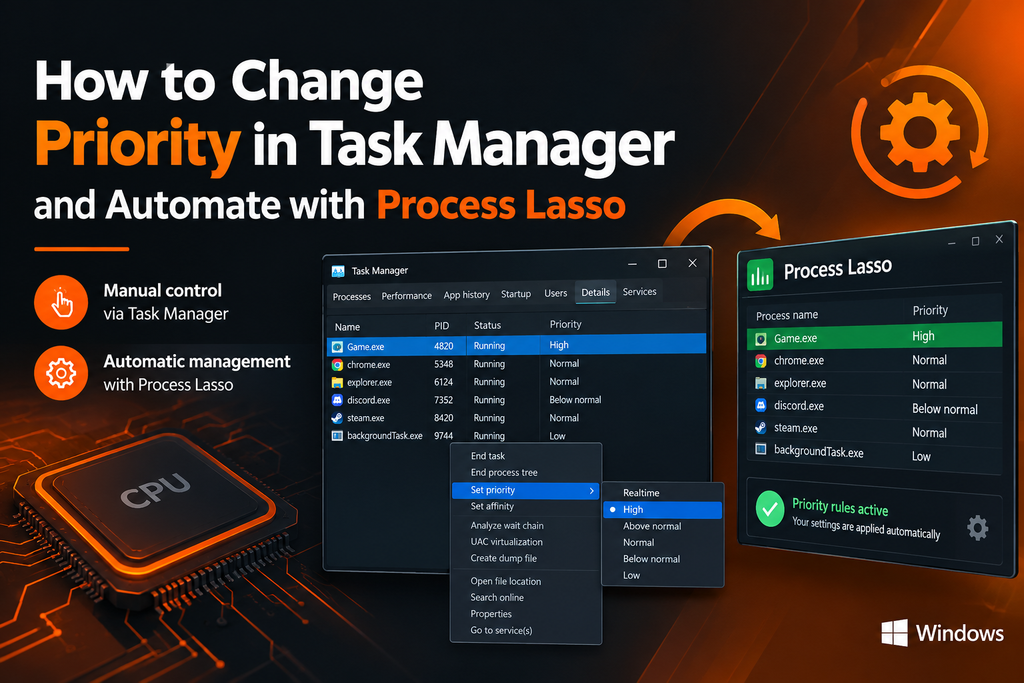
Press Ctrl+Shift+Esc to open Task Manager. If you see the compact view, click More details at the bottom. Then switch to the Details tab — the Processes tab does not expose priority settings. In the Details list, find your program by its executable name (for example, the game’s .exe).
Change the Priority Level
Right-click the process, hover over Set priority, and choose one of the six levels from Realtime down to Low. Pick the level that matches what the program needs — Above Normal or High for something demanding, Below Normal or Low for something you want to keep quiet.
Apply the New Priority Setting
There is no save button and no confirmation dialog: the moment you click a level, it applies to the running process immediately. You can verify by right-clicking the process again — your chosen level will be checked in the menu. The program keeps this priority until it exits.
Why Task Manager Priority Changes Are Not Permanent
If you set a game to High priority today and launch it tomorrow, you will find it back at Normal. That is how Task Manager is designed to work: priority edits are session-based. They apply to the process that is running right now, and they are discarded the moment that process ends — whether you close the program yourself or restart Windows. There is no built-in way in Task Manager to remember a priority choice, which is why anyone who wants the same setting every day ends up repeating the same clicks daily. To understand how persistent settings work across different applications, see our guide to Process Lasso rules and learn how to configure application-specific behavior.
How Process Lasso Improves Process Priority Management
Process Lasso removes the repetition. Instead of a manual tweak that evaporates on exit, it manages priorities as persistent, application-specific settings. You define once how a program should be treated — elevated, lowered, or left alone — and Process Lasso enforces that behavior automatically every time the application runs, with no further clicks from you. The practical difference is maintenance: Task Manager asks you to remember; Process Lasso remembers for you.
Process Lasso vs Task Manager Priority Changes
Both tools adjust the same underlying Windows setting. What differs is everything around it:
| Aspect | Task Manager | Process Lasso |
|---|---|---|
| Persistence | Temporary — resets when the process closes | Permanent — reapplied on every launch |
| Automation | None — every change is manual | Rules assign priorities automatically |
| When it is enough | One-off tests and quick experiments | Daily routines, games, recurring workloads |
| Effort over time | Repeats every session | Set once, then forget |
Which should you use? Use Task Manager when you want to test something once. Use Process Lasso when you want it handled every time.
How to Change Application Priority with Process Lasso
Find the Application in Process Lasso
Open Process Lasso and look at the list of active processes. Locate the application you want to manage — it appears by its executable name, the same name you saw in Task Manager’s Details tab. Make sure the program is running while you do this, so you are configuring the right process.
Set the Desired Priority Behavior
Right-click the process and select CPU Priority, then choose the class you want it to carry. Above Normal or High suits demanding foreground apps; Below Normal or Low suits background tasks you want restrained. Keep Realtime out of the picture unless you have a genuinely specialist reason — the freeze risk is not worth it for ordinary software.
Save the Application Priority Rule
Process Lasso stores your choice as a rule tied to that application. To understand how these settings remain enforced in the background, read our guide to Process Lasso setup and the roles of its graphical interface and Process Governor service.From then on, the priority is applied automatically whenever the program starts — after reboots, after updates, without you opening anything. If you ever want to change or remove it, the rule is listed in Process Lasso’s rules where you can edit or delete it in seconds.
Process Lasso Priority Settings for Common Applications
Game Priority Settings
Games are the classic case: they are demanding, they run daily, and background tasks love to steal their CPU time. A typical setup is Above Normal or High for the game itself, applied as a persistent rule so every session starts correctly. Test one level at a time — if Above Normal smooths things out, there is no need to push further.
OBS Priority Settings
Streaming and recording apps sit in an awkward middle: they need steady CPU access to encode without dropping frames, but they must not choke the game they are capturing. Many streamers give OBS Above Normal — enough to protect the encode, not so much that it fights the game. As always, change one thing, stream for a while, and judge by the dropped-frames counter rather than by feel.
Background Application Priority Settings
Updaters, sync clients, launchers, and browser background processes are ideal candidates for Below Normal. Lowering them does not stop them working — it simply tells Windows to serve your foreground app first when both want the CPU. This is also the safest kind of priority change to make, since a deprioritized background task cannot destabilize anything.
Can Process Lasso Automatically Set Process Priority?
Yes — that is the core of it. Process Lasso watches for processes as they start and applies your rules without intervention: the right priority lands on the right program at launch, every launch. Application detection is by executable name, so the rule follows the program regardless of how it was started. The result is persistent behavior with zero daily maintenance — the configuration equivalent of Task Manager’s manual change, except it survives restarts.
Common Priority Problems and How Process Lasso Helps
Priority Changes Reset After Restart
This is the number one complaint about Task Manager, and it is not a bug — it is the design. The fix is to stop using a temporary tool for a permanent need: a Process Lasso priority rule reapplies your setting on every launch, so the reset problem disappears entirely.
High Priority Option Does Not Work
Sometimes a process seems to ignore a High setting. Common causes: the change was made in a non-elevated Task Manager and never actually applied (run as administrator and retry), the program was restarted (wiping the temporary change), or the real bottleneck is elsewhere — priority cannot help a program that is waiting on the GPU or disk. A persistent rule eliminates the first two causes; the third needs a different diagnosis.
Application Priority Keeps Changing
If a program’s priority seems to drift on its own, something else is managing it — another tuning utility, a launcher, or the application’s own code resetting itself at startup. Process Lasso’s rules reassert your chosen priority each time the process starts, which keeps your setting winning that tug-of-war.
Does Changing Process Priority Improve Performance?
It can, within clear limits. Priority changes scheduling preference — who gets the CPU first — so they help exactly when the problem is contention: background tasks crowding out the app you care about. In that situation, lifting the important app or lowering the noisy ones produces a real, measurable smoothing effect.
But results depend entirely on the workload. If the bottleneck is the graphics card, disk speed, or network, no priority setting will move the needle. And higher is not automatically better: priority is relative, so setting everything to High is the same as changing nothing, while needlessly stripping Windows of the information it uses to arbitrate. Treat priority as a contention tool, not a speed hack. If changing priority does not sufficiently control a CPU-heavy application, learn how Process Lasso CPU Limiter can apply usage-based restrictions when configured thresholds are exceeded.
Frequently Asked Questions About Task Manager and Process Lasso Priority
Final Thoughts on Task Manager Priority and Process Lasso Management
Task Manager is the right tool for quick, manual priority changes — it is built in, immediate, and perfect for testing. Process Lasso is the right tool for everything after the test: automatic, persistent priority management for the applications you run every day. Learn the manual method so you understand what priority does, then automate it so you never have to think about it again.
Disclosure: This is an independent guide and is not affiliated with or endorsed by Bitsum LLC, the developer of Process Lasso. Process Lasso is a trademark of Bitsum LLC.