
What Is Process Lasso Automation?
Process lasso automation encompasses a suite of proactive governance features designed to manage application behavior without constant user oversight. Through process lasso automation rules, the background service continuously evaluates active executables against predefined criteria, executing corrective or enhancing system actions whenever performance thresholds are met. This automated approach replaces reactive task management with a reliable, set-and-forget framework that safeguards system responsiveness across complex daily workloads.
How Process Lasso Automated Process Management Works
Effective automated process management relies on a continuous polling loop that monitors CPU utilization, memory allocation, and thread states across all active Windows tasks. When a program violates designated parameters—such as sustaining excessive processor demand or requiring priority elevation—the governance engine applies targeted system actions within milliseconds.
Microsoft provides technical documentation explaining how Windows manages processes and threads during application execution. Windows processes and threads documentation
Automatic actions define how the governor responds when specific threshold criteria are satisfied by a running program. These actions range from temporary priority reduction and core affinity adjustments to automated restarts and process termination, ensuring that rogue background scripts never starve critical applications.
Automatic actions define how the governor responds when specific threshold criteria are satisfied by a running program. On high-core-count workstations, additional optimization options such as Process Lasso Group Extender can help applications access broader processor resources.
While manual performance tuning requires an operator to constantly monitor Task Manager and adjust priorities by hand, process lasso automatic performance tuning handles these adjustments in real time. This eliminates human latency and ensures consistent resource allocation during unattended background operations.
Process Lasso Watchdog Rules
The watchdog feature serves as an advanced surveillance mechanism tailored to detect and correct runaway background applications before they disrupt system stability.
What Is Watchdog in Process Lasso?
A process watchdog is a specialized rule set that monitors specific executables for abnormal behavior, such as locking up, consuming 100% CPU core capacity indefinitely, or crashing unexpectedly. When triggered, the watchdog enforces pre-configured recovery or throttling protocols.
How Process Lasso Watchdog Monitors Processes
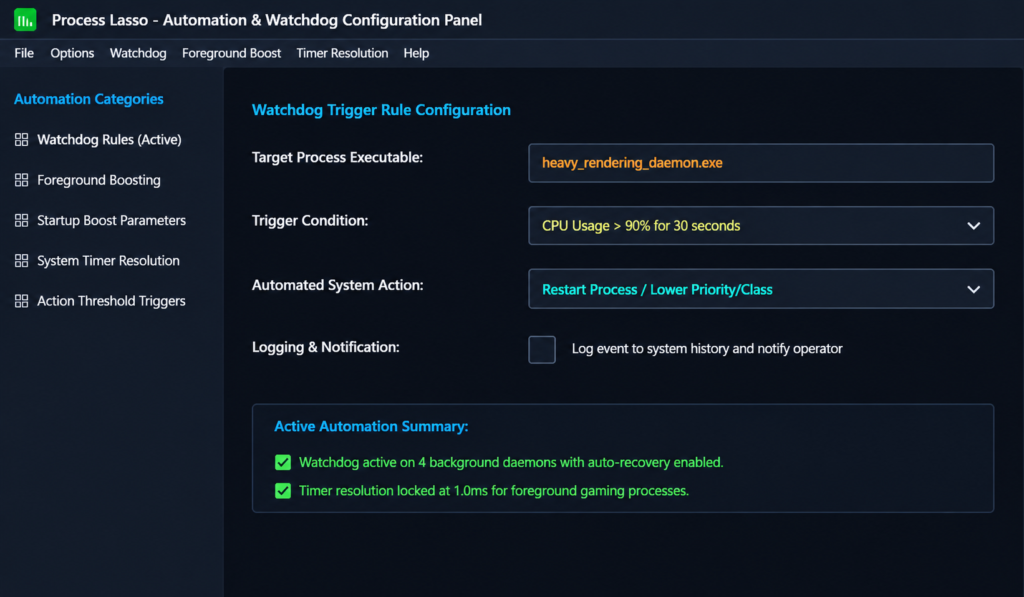
The background monitoring service tracks CPU time and responsiveness metrics for protected executables against user-defined limits. If an application exceeds these limits for a specified duration, the watchdog executes automated rules such as lowering its priority class or restarting the executable entirely.
Using Watchdog for Automatic Process Control
Configuring watchdog automation allows system administrators to maintain high availability for critical background daemons. Operators can establish these rules by navigating to Options > Watchdog Rules within the centralized console or by right-clicking a target process and selecting persistent watchdog parameters. By defining strict Process Lasso resource monitoring rules, operators can ensure that auxiliary batch jobs or rendering services self-correct upon encountering performance loops via Process Lasso automatic actions and Process Lasso process control.
Process Lasso Foreground Boosting Rules
Foreground boosting ensures that the application currently occupying your active window receives immediate priority preference to maximize user interface fluidity.
What Is Foreground Boosting in Process Lasso? Foreground boosting temporarily elevates the thread scheduling priority of the active foreground window whenever you switch focus between applications, ensuring smooth cursor movement and snappy input registration.
How Foreground Boosting Improves Application Responsiveness By temporarily prioritizing active window threads over background background workloads, foreground boosting minimizes input latency and prevents background tasks from causing visual stutter during active interactions.
When Should You Use Foreground Boosting? Foreground boosting is highly beneficial for productivity suites, web browsing, professional media editing, and gaming environments where responsive user interface feedback is paramount. Users can configure these settings by navigating to Options > Foreground Boost to execute Process Lasso foreground process optimization and Process Lasso improve foreground performance.
Process Lasso Startup Boost Rules
Optimizing application launch intervals prevents system bottlenecks during boot sequences and heavy multi-application startup phases.
What Is Startup Boost in Process Lasso?
Startup boost parameters temporarily optimize thread allocation and priority handling the moment an application is launched, helping programs reach a stable running state faster.
How Startup Boost Improves Application Launch Speed
By temporarily mitigating initialization contention and streamlining resource allocation during program startup, startup boost reduces launch latency and helps applications open smoothly without lagging the desktop.
Startup Boost Settings for Better Performance
Applying startup performance adjustments to frequently used productivity tools and heavy development environments ensures rapid deployment without overwhelming available system RAM or processor cores.
Process Lasso Timer Resolution
Process Lasso Timer Resolution Rules
System timer resolution control allows advanced operators to override default Windows clock interrupt intervals to reduce input latency and optimize high-refresh-rate rendering.
What Is Timer Resolution in Process Lasso?
Default Windows timer resolution operates at roughly 15.6 milliseconds, which can introduce micro-stutter and input lag in timing-sensitive applications. By accessing Options > Timer Resolution, Process Lasso timer resolution features allow the software to enforce a finer timer interval (such as 1.0ms) while designated apps run, leveraging native Windows NT kernel interrupt interval APIs.
How Timer Resolution Affects System Responsiveness
Refining system timer resolution improves thread synchronization cadence and sleeping accuracy, resulting in smoother frame delivery and sharper polling response times across hardware peripherals.
Should You Use Timer Resolution for Gaming?
Yes, leveraging timer resolution optimization is a popular practice among competitive gamers seeking to minimize input lag and stabilize frame pacing, provided it is used selectively on demanding titles.
Best Process Lasso Automation Settings for Different Use Cases
Tailoring your automation profile to specific operational scenarios guarantees maximum efficiency without introducing unintended system conflicts.
Process Lasso Automation
for Gaming Performance
For gaming setups, combining foreground boosting, selective timer resolution optimization, and watchdog rules for background launchers helps eliminate stuttering and maintains fluid frame rates during intense multiplayer sessions.
Process Lasso Automation
for Background Applications
Background application management benefits from strict watchdog thresholds and automated resource throttling, ensuring that auxiliary servers and file sync tools operate smoothly without impacting foreground usability.
Process Lasso Automation
for Windows Optimization
General Windows optimization automation leverages background workload regulation and automated performance tuning to keep legacy hardware running smoothly across multi-year lifecycles.
Common Process Lasso Automation Mistakes to Avoid
Avoiding typical configuration errors ensures your automated governance rules remain stable, predictable, and effective over time.
Creating Conflicting Automation Rules
Setting competing priority adjustments or contradictory watchdog triggers for the same executable can cause erratic application behavior. Always review overlapping rules before saving changes.
Applying Automation to the Wrong Processes
Targeting critical operating system binaries or core kernel services with aggressive automated throttling or termination rules can induce system instability. Restrict automation profiles to user-space applications and auxiliary daemons.
Changing Advanced Settings Without Testing
Modifying advanced timer resolution or watchdog parameters without testing under load can lead to unexpected resource behavior. Validate changes incrementally in a controlled environment.
Frequently Asked Questions About Process Lasso Automation Rules