
Process Lasso CPU Limiter: How to Control Excessive CPU Usage Automatically
Process Lasso CPU Limiter is an advanced resource management feature designed to automatically control applications that consume excessive CPU resources, preventing rogue processes from dominating system capacity. By monitoring real-time thread scheduling via the background governor service (processgovernor.exe), the utility detects CPU usage spikes and applies temporary restrictions before automatically restoring normal hardware access once workload intensity subsides. This technical guide explores CPU limiter mechanics, threshold configurations, rules management, workload use cases, and performance benefits across modern Windows NT environments. For a complete collection of optimization resources and technical documentation, visit the Process Lasso Download hub.
What Is Process Lasso CPU Limiter?
Process Lasso CPU Limiter serves as an automated safeguard against resource contention, managing CPU-intensive applications, background processes, and runaway threads that threaten system responsiveness. When a single application consumes all available processor cycles, user interfaces freeze, audio stutters, and critical background services starve for attention.
The CPU Limiter resolves this competition by dynamically intervening when user-defined thresholds are breached. Unlike permanent CPU affinity masks or static priority assignments, the limiter operates as a reactive throttle, ensuring that demanding software pipelines receive necessary computing time without locking out other applications.
How Process Lasso CPU Limiter Works
The working mechanism of the CPU Limiter relies on continuous process monitoring conducted by the privileged background service executing under the SYSTEM account via the Windows Service Control Manager. The governor queries native Windows NT executive APIs to track CPU consumption patterns across all active threads. The CPU Limiter is part of a broader group of optimization technologies explained in our Process Lasso Algorithms guide.
When an application exceeds specified usage percentages for a configured duration, the background service triggers automatic limiting actions. These actions temporarily rein in the offending process’s execution scheduling before automatically releasing the restriction once activity returns to normal levels.
Process Lasso CPU Limiter works alongside Windows CPU scheduling to manage excessive CPU usage and temporarily restrict CPU-intensive processes when they exceed configured thresholds. Windows CPU scheduling documentation
Understanding CPU Usage Limits in Process Lasso
CPU usage limits are defined by specific percentage thresholds and trigger conditions established by the administrator. Users can configure process-specific limits that dictate acceptable processing ceilings for demanding applications without impairing their core functionality. These limits prevent background compilation tools, rendering engines, or synchronization utilities from monopolizing hardware threads, ensuring a balanced distribution of computing power across all active software.
How Process Lasso Detects Excessive CPU Usage
Detection of excessive CPU usage involves continuous background observation of process activity and thread execution queues. The monitoring engine evaluates CPU consumption patterns over rolling time windows to differentiate between brief processing bursts and sustained resource hogging. By analyzing these telemetry streams in real time, Process Lasso ensures that intervention occurs precisely when an application threatens overall system stability and responsiveness.
Temporary CPU Restrictions and Automatic Recovery
CPU Limiter restrictions are strictly temporary, distinguishing them from permanent performance handicaps. Once the targeted process reduces its computational demand below the activation threshold, Process Lasso automatically restores normal CPU access. This automated recovery loop ensures that applications can complete their heavy workloads without suffering permanent performance limitations or requiring manual user intervention.
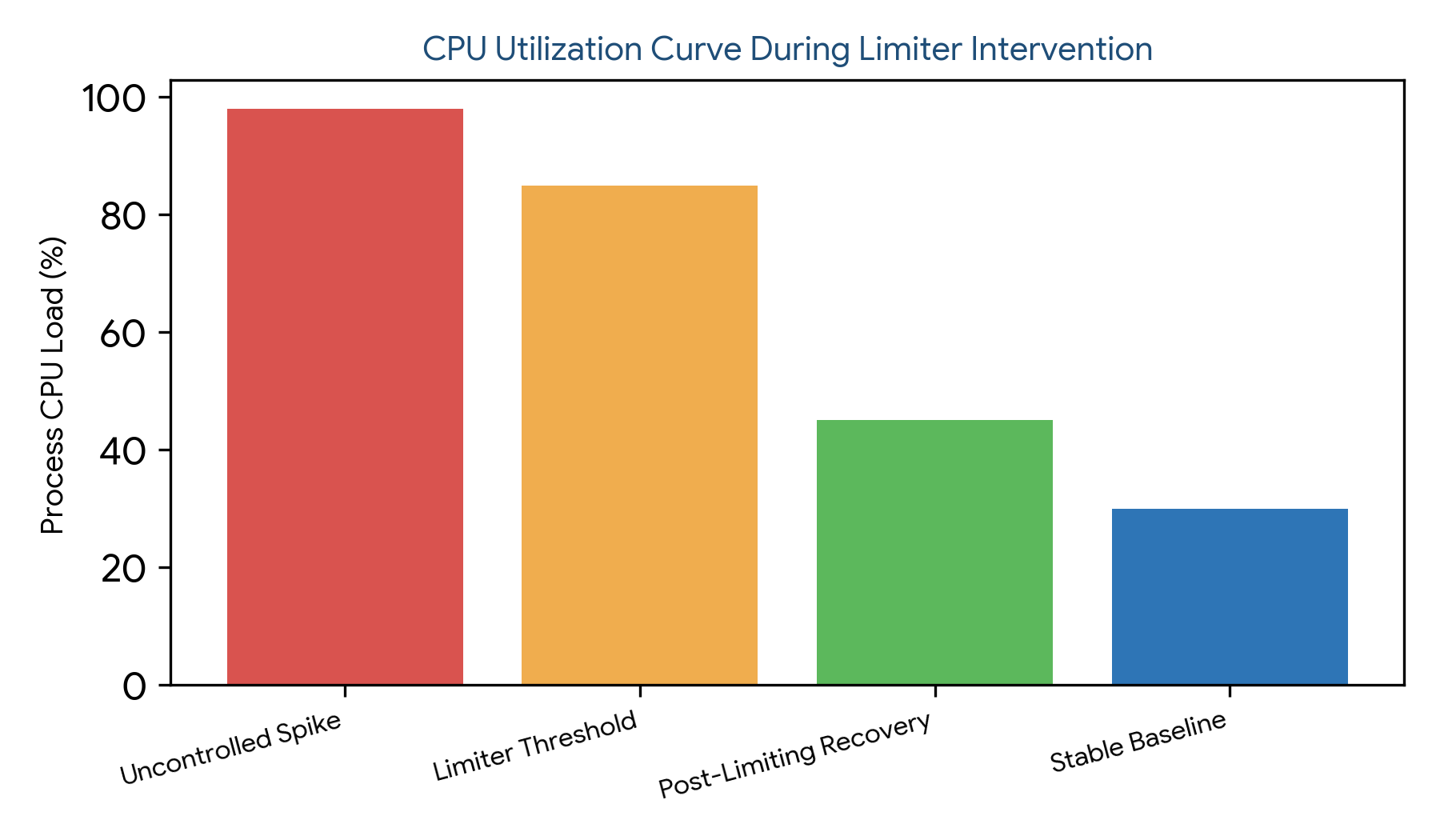
Figure 1: CPU utilization curve illustrating uncontrolled process spikes, limiter threshold intervention, post-limiting recovery, and stable baseline operation
Process Lasso CPU Limiter Rules and Settings
Creating and managing CPU Limiter rules allows administrators to tailor resource control to specific application requirements. By navigating through the desktop interface to Options > Rules Manager > CPU Limiter, operators can define precise rules for demanding executables.
Configuring these parameters correctly ensures that background utilities and heavy workloads operate within safe computational boundaries without generating false positives or disrupting critical tasks.
| Rule Component | Configuration Parameter | Default Behavior | Administrative Purpose |
|---|---|---|---|
| Trigger Threshold | CPU Utilization Percentage | 85% sustained load | Defines excessive resource consumption |
| Duration Window | Observation Time Interval | 10 to 30 seconds | Prevents false positives from short bursts |
| Throttle Action | Execution Restriction | Temporary constraint | Reduces CPU load of target process |
| Recovery Period | Restoration Interval | Automatic release | Restores normal CPU access after load drops |
Process Lasso CPU Limiter Configuration Explained
Advanced CPU Limiter configuration encompasses fine-tuning available options, managing trigger conditions, and ensuring seamless recovery processes. Persistent configuration parameters are stored safely within `C:\ProgramData\ProcessLasso\config\prolasso.ini` to guarantee rule persistence across system reboots. For broader settings management, administrators can review the Process Lasso Configuration guide covering files, paths, and advanced options.
Understanding these advanced options enables power users to construct robust optimization strategies that adapt dynamically to fluctuating computational demands across diverse software environments.
Understanding CPU Limiter Options
Available settings within the configuration menu allow operators to customize limit values, select matching criteria, and adjust trigger sensitivity. These options provide granular control over how aggressively Process Lasso reins in offending processes.
Managing CPU Limiter Triggers and Conditions
Managing activation triggers ensures that throttling engages only when specific CPU usage conditions and process states are met. User-defined rules prevent background utilities from consuming processor cycles needed by foreground applications.
Restoring Normal CPU Access After Limiting
The recovery process manages the transition from temporary restriction back to standard thread scheduling. By monitoring falling CPU utilization, the background service lifts restrictions smoothly, preventing abrupt performance shifts.
How Process Lasso Reduces High CPU Usage
Practical CPU control yields immediate system-wide benefits by curbing unexpected CPU spikes and preventing total resource exhaustion. By interceding before processor queues saturate, Process Lasso preserves system responsiveness under heavy workloads.
This proactive resource regulation ensures that multi-threaded environments maintain stable execution performance without stuttering or freezing.
Controlling CPU Intensive Processes
Demanding applications such as video rendering software, local code compilation tools, and file encoding utilities frequently saturate available processor cores. The CPU Limiter prevents these tasks from starving the rest of the operating system of necessary computing bandwidth.
Preventing One Process From Using All CPU Resources
Resource balancing is essential for maintaining system usability when multiple background tasks execute simultaneously. Limiting rogue processes protects active user applications from severe performance degradation.
Reducing Background Application CPU Usage
Non-critical background utilities, cloud synchronization clients, and web browser helper processes often consume excess CPU cycles invisibly. Applying limiter rules to these background agents significantly reduces overall electrical draw and thermal output.
Process Lasso CPU Limiter vs Other CPU Management Features
Distinguishing between Process Lasso’s various CPU management features prevents administrative confusion and ensures proper tool selection for specific optimization challenges. Each feature targets distinct aspects of Windows NT thread scheduling.
Understanding the functional differences between temporary throttling, static core allocation, and priority scheduling allows operators to construct layered defense strategies against performance bottlenecks. Users comparing different restriction methods can also explore Process Lasso Hard Throttling for deeper control over process resource limits.
CPU Limiter vs CPU Affinity Rules
Temporary CPU Control: The CPU Limiter provides temporary, automatic restriction when CPU usage exceeds defined thresholds, allowing intervention based on actual workload intensity.
Fixed Core Assignment: CPU Affinity rules establish permanent assignments that bind processes to specific physical or logical CPU cores. Limiter rules react to workload intensity, while affinity masks dictate execution location.
CPU Limiter vs Process Priority Rules
Scheduling Importance: Process Priority rules modify the scheduling importance of an application relative to other tasks within the Windows NT executive.
CPU Processing Control: The CPU Limiter actively controls the amount of CPU processing time consumed over given intervals, providing direct workload restriction rather than simply changing scheduling priority.
Process Lasso CPU Limiter Features
Active Watchdog: The specialized CPU Limiter operates as an active watchdog mechanism that continuously monitors CPU-intensive processes and applies configured restrictions when necessary.
Integrated Process Management: The CPU Limiter works alongside broader Process Lasso automation features that manage startup boosts, instance limits, and power profile switching across the operating system.
| Feature Name | Primary Operating Mechanism | Persistence Level | Core Administrative Purpose |
|---|---|---|---|
| CPU Limiter | Dynamic usage-based throttling | Temporary / Reactive | Prevents runaway CPU spikes |
| CPU Affinity | Core mask assignment | Permanent / Static | Restricts execution to specific cores |
| Process Priority | NT thread class adjustment | Persistent / Static | Changes scheduling priority |
Process Lasso CPU Limiter Use Cases
Practical deployment scenarios demonstrate the versatility of the CPU Limiter across gaming rigs, background utility setups, enterprise servers, and heavy workstation environments. Applying targeted limits resolves unique performance bottlenecks in each setting.
IT administrators and power users leverage these use cases to maintain reliable system operation under demanding conditions without sacrificing overall hardware throughput.
Using CPU Limiter for Gaming Applications
Gaming setups benefit from restraining background applications that trigger sudden micro-stutters during critical gameplay moments. While the CPU Limiter does not guarantee arbitrary frame rate increases, it ensures smoother gameplay by preventing background updaters from stealing processor cycles.
Using CPU Limiter for Background Processes
Managing non-essential background processes, web browsers with numerous open tabs, and cloud sync tools prevents runaway background workloads from degrading user experience on standard productivity machines.
Using CPU Limiter for Servers and Remote Desktop Environments
Shared resource environments such as Terminal Servers and Remote Desktop Services benefit immensely from CPU limiting policies. Restraining resource-heavy user processes ensures fair resource distribution and prevents single sessions from destabilizing the entire server.
Using CPU Limiter for Heavy Workloads
Long-running computational tasks, video rendering pipelines, and data processing scripts can be configured with CPU limits to prevent thermal overheating and excessive fan noise during extended unattended operation.
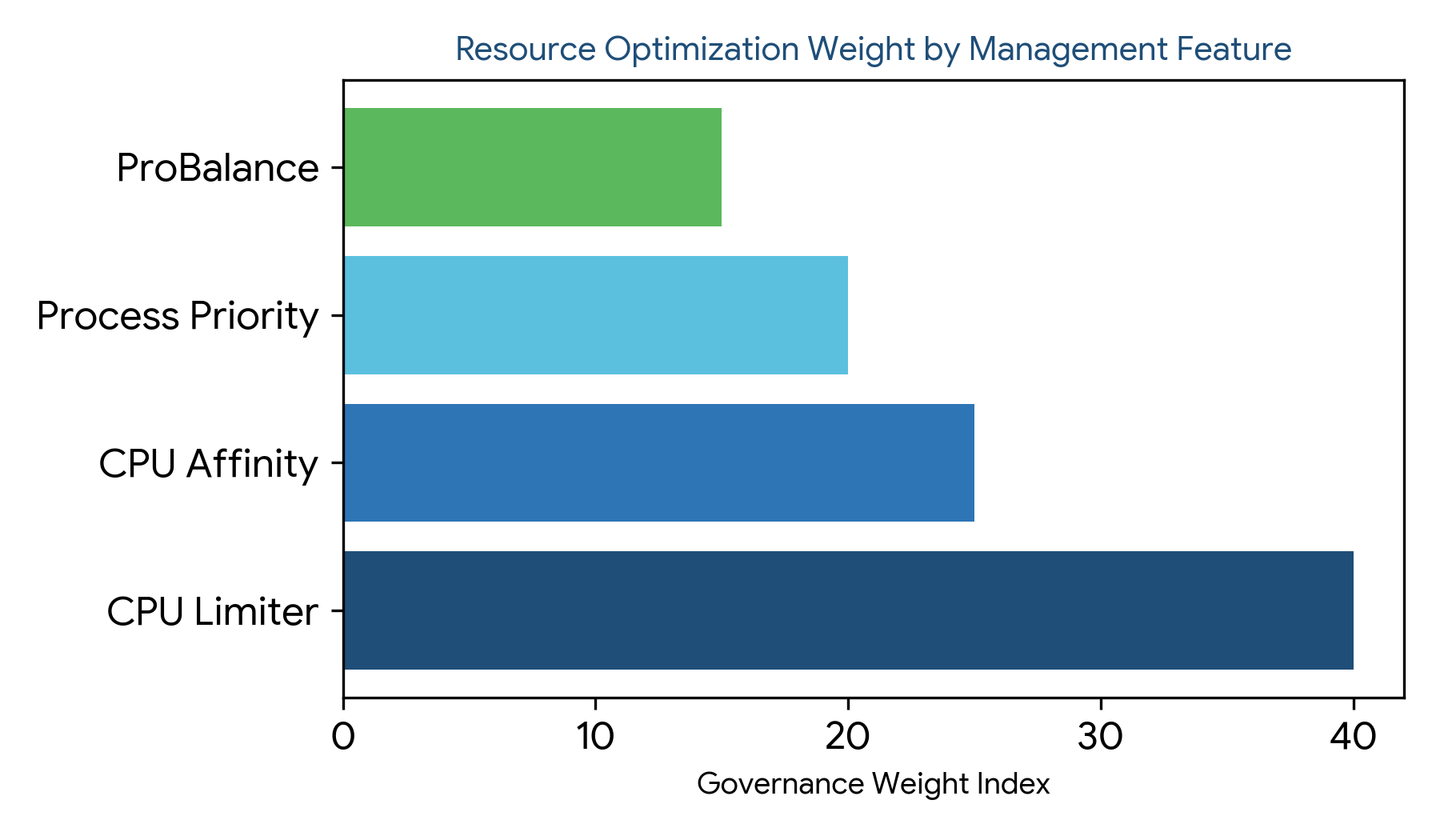
Figure 2: Resource optimization weight distribution across CPU Limiter, CPU Affinity, Process Priority, and ProBalance management features.
Benefits of Using Process Lasso CPU Limiter
The overarching advantages of deploying the Process Lasso CPU Limiter include enhanced system responsiveness, elimination of debilitating CPU spikes, and superior resource balancing between foreground and background workloads.
These benefits translate into a more stable, predictable computing experience across both consumer desktops and enterprise server fleets. For additional system efficiency strategies, explore Process Lasso Power Management and automated performance profile controls.
Improving System Responsiveness During High CPU Usage
Preventing system freezing and sluggish cursor movement during heavy processing tasks maintains usable performance even when demanding software runs concurrently in the background.
Preventing CPU Spikes and Performance Issues
Handling sudden computational increases smoothly avoids thermal throttling and voltage surges, contributing to prolonged hardware longevity and consistent operational performance.
Maintaining Better Resource Balance Between Applications
Balancing active workloads ensures that user-facing applications receive priority attention while maintenance tasks complete gradually without disrupting active workflows.
CPU Limiter Rules Not Applying
When limiter rules fail to engage, operators should verify that target process names match exact executable binaries and that no conflicting security permissions block the background service from monitoring the application.
Process Lasso Not Detecting High CPU Usage
Failing to detect high CPU usage typically points to misconfigured monitoring intervals or overly conservative threshold percentages. Reviewing diagnostic logs helps confirm whether telemetry data is updating properly.
CPU Limiter Restrictions Not Being Removed
If restrictions persist after workloads subside, checking rule duration settings and ensuring the background governor service (processgovernor.exe) is running normally resolves recovery failures.
