
Why Use Process Lasso for Elden Ring?
Elden Ring never runs alone. While you play, background services, updaters, browser processes, launchers, and overlays all compete for the same processor time — and when one spikes at the wrong moment, the game can hitch even on fast hardware.
Process Lasso helps by managing how Elden Ring behaves while it runs: keeping the game’s CPU access steady and keeping background workloads from barging in at critical moments. Two things to be clear about upfront, because they shape the whole guide: Process Lasso is not a magical FPS booster, and results depend on your hardware and system conditions. What it can genuinely improve is consistency — fewer interruptions, steadier frame delivery — not a guaranteed higher frame rate.
Process Lasso Elden Ring Setup Before Playing
Install and Open Process Lasso
Download Process Lasso from the official site and run through the installer, then launch it. You will see the main window with the active process list — every running program on your system, updating live. You do not need to understand every column yet; for this guide, the process list is the only part that matters. Keep Process Lasso running in the background while you play — its engine does the managing, not the window.Add Elden Ring to Process Lasso
Launch Elden Ring, then Alt-Tab back to Process Lasso and find the game’s process in the active list by its executable name. Selecting the correct process is the step everything else depends on: rules you create attach to this process, so take a moment to confirm you have the game itself and not the launcher or an overlay. If several similarly named entries appear, the one consuming the most CPU while the game runs is your target.Create an Elden Ring Profile
Rather than scattering one-off tweaks, organize everything for the game in one place: a set of rules dedicated to Elden Ring, kept separate from the rules you might have for other applications. The practical benefit is isolation — you can tune, disable, or remove the game’s entire setup without touching anything else, and you always know exactly which settings apply when Elden Ring launches.Best Process Lasso Settings for Elden Ring
Process Lasso Priority Settings for Elden Ring
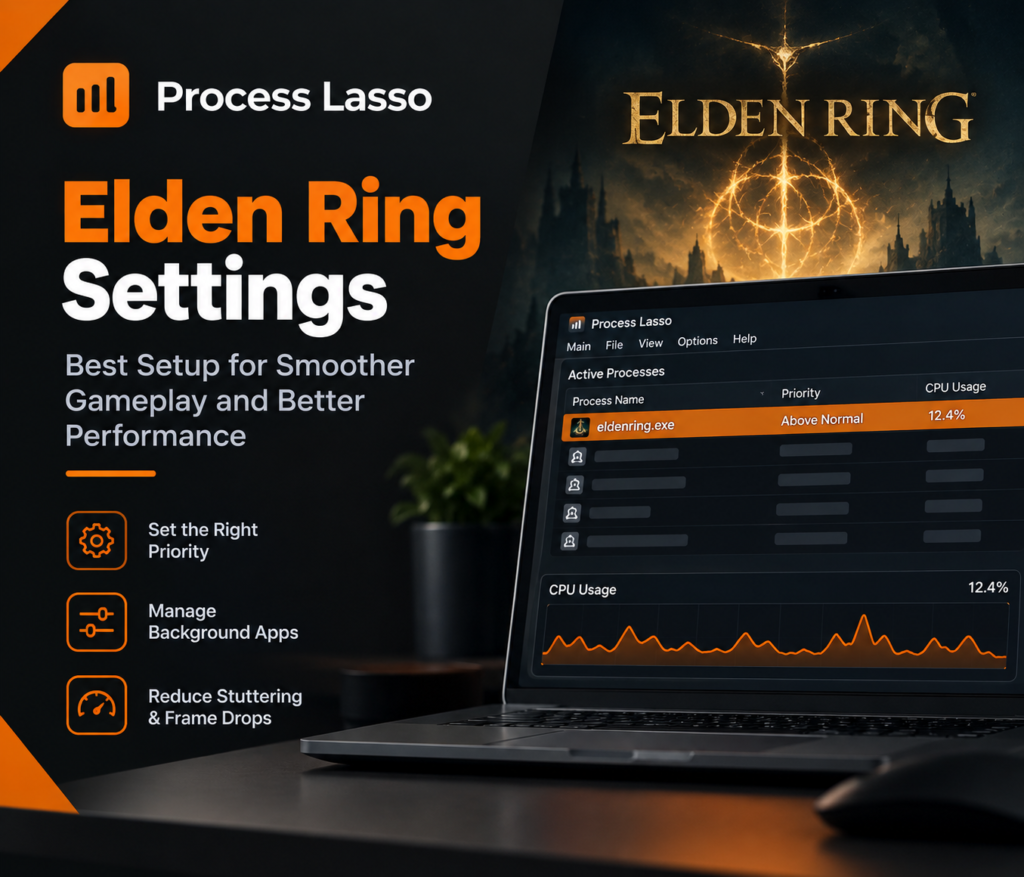
Priority decides how eagerly Windows serves the game when processes compete. A reasonable starting point is Above Normal for Elden Ring’s process: it gives the game preference over background work without the risks of the top levels. Resist the urge to jump straight to High or Realtime — extreme settings can backfire by starving system tasks the game itself depends on, and Realtime in particular can make the whole PC unresponsive. Change one level, play for a while, and only go further if you have a measured reason.
Process Lasso Rules for Elden Ring
A manual priority tweak lasts only until the game closes — the same temporary behavior as Task Manager. The fix is a rule: tell Process Lasso to apply your chosen priority (and any other settings below) automatically whenever Elden Ring’s process starts. Rules are what turn a one-time experiment into a permanent setup, so every session begins with the configuration you already validated instead of the defaults.
Managing Background Processes While Playing Elden Ring
The other half of the equation is quieting the competition. Identify the background programs that spike while you play — updaters, sync clients, browser tabs left open — and restrain them with Below Normal priority or, for things you simply do not need during a session, pause them entirely. Be selective: keep your voice chat, the Steam client services the game needs, and any overlay you actually use. The goal is fewer interruptions, not a scorched-earth shutdown of everything.
How Process Lasso Helps With Elden Ring Stuttering
Stuttering has many possible parents: shader compilation, asset streaming, background CPU spikes, driver behavior, or hardware at its limit. Process Lasso addresses one family of causes — inconsistent CPU availability from competing workloads. If your stutter comes from background interference, it can smooth things noticeably; if it comes from the GPU or the game’s own streaming, it cannot.
Fix Elden Ring Micro Stutters
Micro stutters are brief frame-time spikes — the game mostly runs fine, then hitches for a fraction of a second. When background workloads cause them, the pattern is irregularity: something else grabbed the CPU at the wrong instant. The remedy is the combination from the previous section — steady priority for the game, restrained background tasks — followed by proper testing: play the same area for ten minutes before and after the change and judge by whether the hitches thin out, not by a single smooth minute.
Reduce Frame Drops During Gameplay
Larger, sustained frame drops usually mean something heavier is competing — a scan starting, an update downloading, a browser tab waking up. Watch Process Lasso’s process list (or Task Manager) during a bad stretch and note which processes surge alongside the drops. Those are your candidates for restraint rules. Fix the worst offender first; one well-chosen rule often does more than five speculative ones.
Improve Frame Pacing and Smoothness
There is an important distinction between FPS and smoothness. FPS counts frames per second; smoothness is about how evenly those frames are delivered. A game at a locked 60 with even pacing feels better than one averaging 70 with constant spikes — and frame pacing is exactly where steadier CPU availability pays off. When evaluating your setup, watch for consistency of delivery rather than chasing the highest number on the counter.
Process Lasso Elden Ring CPU Usage Settings
Managing High CPU Usage in Elden Ring
Start by establishing what is normal for your system: note the game’s CPU usage during calm exploration versus busy combat. If usage is high but smooth, that is the game working as intended — modern open-world games are CPU-hungry by design. The actionable cases are the ones where usage spikes coincide with stutters or where background applications, not the game, are consuming the headroom. Check the background first; tame the game last.
Handling CPU Spikes During Gameplay
Sudden workload increases — entering a new area, a weather effect triggering, an autosave — will spike CPU no matter what you configure. Process Lasso cannot flatten those; what it can do is make sure nothing else piles on top of them. Keep your rules conservative here, change one variable at a time, and give each change a real play session before judging it. Chasing spikes with aggressive settings usually creates more problems than it solves.
Process Lasso Elden Ring FPS Improvements
Does Process Lasso Increase Elden Ring FPS?
Not directly, and anyone promising otherwise is selling something. Process Lasso does not make your CPU or GPU faster, and it cannot conjure frames your hardware cannot render. What it may improve is consistency: fewer dips, steadier pacing, fewer background-induced hitches. On a system where background interference was the actual problem, that consistency can feel like a performance gain — but the average FPS number may barely move, and that is a perfectly successful outcome.
What Performance Changes Should You Expect?
Set expectations by your bottleneck. Your results depend on four things: your GPU, your CPU, your in-game settings, and your resolution. If the GPU is the limit, process management changes almost nothing. If the CPU is contested by background work, expect smoother delivery rather than a higher ceiling. The honest summary: same hardware, fewer interruptions, steadier experience — not a new graphics card in software form. For readers using high-core-count systems, our Process Lasso Group Extender explains processor-group handling and when that functionality may be relevant.
Process Lasso Elden Ring Windows 11 Settings
On Windows 11 the same principles apply. The OS’s own gaming features Game Mode, hardware-accelerated GPU scheduling work at different layers than Process Lasso, so there is no need to disable one for the other. For more detail on how Process Lasso handles power-plan behavior, read our guide to Process Lasso Power Management before changing your system’s power settings.Just re-test after major Windows updates, which occasionally reset process behaviors or reintroduce background tasks you had tamed.
Windows Game Mode operates at a different layer from Process Lasso’s process rules. For more background, see Microsoft’s Windows Game Mode documentation ↗ .
Process Lasso Elden Ring Steam Setup
Common Process Lasso Elden Ring Problems
Process Lasso Not Affecting Elden Ring
Almost always one of three things: the rule targets the wrong process (see the Steam section above), the rule exists but is disabled, or the game was already running before the rule was created and needs a restart to pick it up. Walk through those in order before assuming anything deeper is wrong.
Elden Ring Still Stuttering After Process Lasso Setup
If the stutter persists with sensible rules in place, the cause is likely outside process management’s reach: hardware at its limit, in-game settings too high for the GPU, driver issues, or the game’s own asset streaming. Work through those systematically — lower settings, update drivers, close the overlay — rather than tightening Process Lasso further. More aggressive process settings cannot fix a non-process problem.
Process Lasso Settings Not Applying
Check that the rules are saved and enabled, then fully restart the game — rules apply at process start, so a game launched before the rule existed will not be affected until relaunch. Also confirm no conflicting rule is overriding yours: two rules fighting over the same process produce exactly this symptom.
Process Lasso Elden Ring FAQ
Final Thoughts: Is Process Lasso Worth Using for Elden Ring?
Process Lasso earns its place for players who want control: game-specific rules, applied automatically, that keep Elden Ring’s CPU access steady and background noise down. It will not transform your hardware or promise frames it cannot deliver. Set it up conservatively, test changes in real gameplay, and judge by smoothness rather than the FPS counter.
Disclosure: This is an independent guide and is not affiliated with or endorsed by Bitsum LLC, the developer of Process Lasso, or by FromSoftware/Bandai Namco, the developer and publisher of Elden Ring. Process Lasso and Elden Ring are trademarks of their respective owners.