
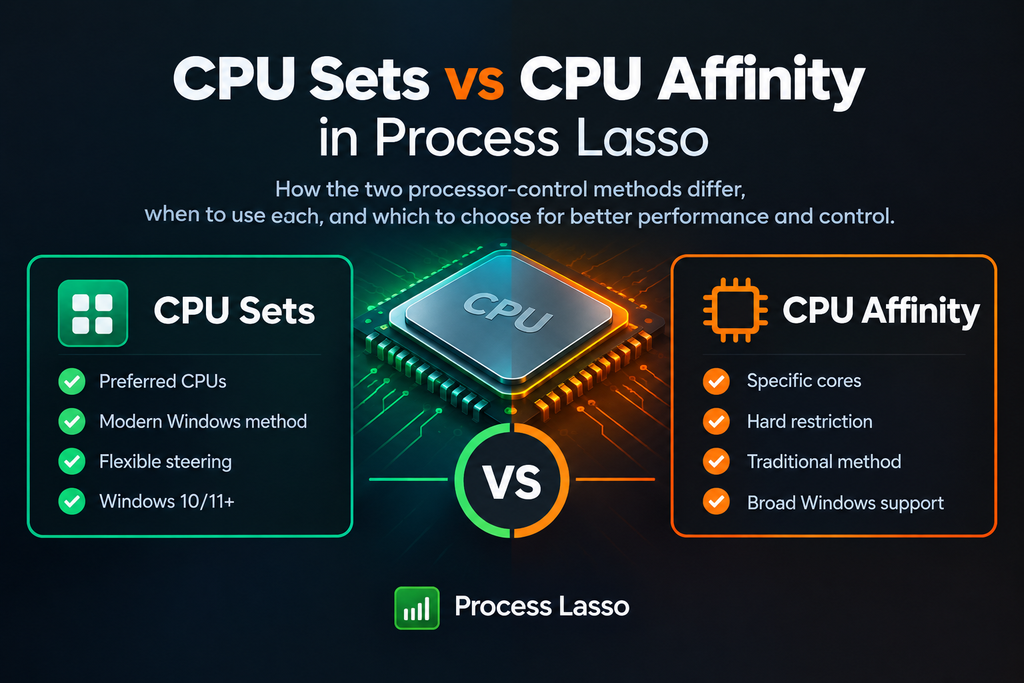
Process Lasso CPU Sets vs CPU Affinity: Quick Difference
CPU affinity is the traditional method: you pin a process to specific CPU cores, and its threads run only there — a hard restriction. CPU Sets is the newer Windows method: you assign the process a set of preferred CPUs, a more modern way to steer processor usage. Affinity says ‘only these cores’; CPU Sets says ‘prefer these CPUs.’ Process Lasso supports both, because different situations call for different tools.
CPU Affinity
“Only these cores.”
CPU Sets
“Prefer these CPUs.”
CPU Sets and CPU Affinity in Process Lasso: What Makes Them Different?
Start with what they share: both methods influence processor usage, letting you decide how much of the CPU — and which parts of it — an application may use. The difference is in approach.
CPU affinity is direct and absolute: select cores 0–3, and the process is confined to them, period. It is the blunt, predictable instrument — easy to reason about, with behavior you can verify at a glance.
CPU Sets takes the newer path that Windows itself introduced for processor management: instead of hard-pinning, you designate a set of CPUs for the process to favor. It is the more modern idiom — designed for today’s systems with many cores, hybrid architectures, and dynamic workloads. Process Lasso offers both because neither covers every situation: sometimes you want the certainty of a hard pin, sometimes the flexibility of the modern method.
Process Lasso CPU Sets vs CPU Affinity Comparison Table
|
Factor |
CPU Affinity |
CPU Sets |
|---|---|---|
|
Method |
Hard restriction to selected cores |
Preferred set of CPUs (modern Windows method) |
|
Strictness |
Absolute — threads run only on chosen cores |
Softer — steers rather than confines |
|
Age of mechanism |
Traditional, long-standing Windows feature |
Newer, introduced with modern Windows |
|
Windows support |
Available broadly across Windows versions |
Requires Windows 10 or later |
|
Best when |
You need exact, verifiable core control |
You prefer the modern management approach |
|
Learning curve |
Simple concept: pick cores |
Slightly more abstract concept |
The short version
The table captures the essential trade: certainty and universality on the affinity side, modernity and flexibility on the CPU Sets side.
How CPU Sets and CPU Affinity Differ in Process Lasso
In practical Process Lasso use, the difference shows up in how each method controls processor access.
CPU Affinity: read it off directly
Affinity is configuration you can read off directly: open the process’s settings and you see exactly which cores are checked. Its effect is deterministic — useful when you are isolating workloads, keeping a game off the cores a streaming encoder uses, or verifying behavior for troubleshooting.
CPU Sets: the adaptive option
CPU Sets behaves as the more adaptive option: you express a preference about CPU usage in the modern idiom, and the system manages within it. Process Lasso offers both precisely because one method is not universally better — the hard pin suits situations demanding exact control, while CPU Sets suits users who want processor management that fits how modern Windows thinks about scheduling.
When Should You Use CPU Sets in Process Lasso?
CPU Sets may be the suitable choice when:
When Should You Use CPU Affinity in Process Lasso?
CPU affinity may be the suitable choice when:
CPU Sets vs CPU Affinity: Performance Differences
Neither method makes your processor faster they change how existing capacity is divided. Any performance conversation here is about reducing interference and improving consistency, not raising ceilings. For another aspect of system performance, explore Process Lasso power management and how power behavior differs from processor assignment.
Gaming Workloads
Some users experiment with processor control methods for games, usually to separate the game from background work. Results depend on the game, the CPU architecture, and the rest of the system — there is no universal winner, and this guide will not pretend there is a single ‘best’ configuration. If you test, test one method at a time and judge by smoothness in real gameplay, not by synthetic scores.
Professional Applications
Rendering, development workloads, and other heavy applications are where processor control earns its keep: dedicating cores (or a CPU set) to the main workload while background tasks live elsewhere. Choose the method that matches your need for precision — affinity when the assignment must be exact, CPU Sets when a modern steering approach suffices.
Background Processes
For applications running alongside your primary workload — sync clients, updaters, chat apps — either method works to keep them out of the way. This is also the lowest-stakes place to experiment: restraining background apps cannot destabilize anything, so try one method, observe, and keep what feels smoother. If background applications consume excessive processor time, learn how the Process Lasso CPU Limiter can restrict CPU usage when configured thresholds are reached.
CPU Sets vs CPU Affinity: Compatibility and System Support
The main compatibility line is the Windows version. CPU affinity is a long-standing mechanism available across Windows versions, old and new. CPU Sets arrived with modern Windows — you need Windows 10 or later to use it, which covers the vast majority of current systems but excludes older ones.
CPU Affinity runs on
All Windows versions
CPU Sets requires
Windows 10 or later
⚡ Test before you trust
Application behavior can also differ: the overwhelming majority of programs run fine under either method, but unusual or very old software occasionally reacts unexpectedly to processor restrictions. For high-core-count systems, see how Process Lasso Group Extender helps compatible applications access CPU resources across multiple processor groups. That is why testing matters — apply a setting, run the application normally for a while, and confirm nothing misbehaves before treating the configuration as final.
CPU Sets or CPU Affinity: Which One Should You Choose?
Choose CPU Sets When:
Choose CPU Affinity When:
When in doubt, start with affinity: its behavior is the easiest to understand and verify. Move to CPU Sets when you are comfortable and want the modern approach.
Process Lasso Quick Reference
The core ideas behind every Process Lasso setting at a glance — useful context whichever processor control method you choose.
01 Management Model
Adds a configurable process-management layer alongside Windows scheduling.
02 Process Scope
Controls apply to individual applications instead of changing the entire system.
03 CPU Control
CPU Affinity and CPU Sets are two different ways to define processor selection.
04 Priority Control
Process priority influences how Windows schedules an application’s threads.
05 Temporary vs Persistent
A temporary change lasts for the current session; a persistent rule reapplies every time the process launches.
06 Automation
ProBalance and other automated mechanisms respond to changing workload conditions.
07 Rule Logic
Process-specific rules can combine several settings for recurring workloads.
08 Governor
The background governor enforces your policies even when the interface is closed.
BEST PRACTICE · THE MANAGEMENT CYCLE
1. Observe → 2. Identify → 3. Apply → 4. Re-evaluate
Change one relevant setting at a time and compare behavior before adding further restrictions.
Common Questions About Process Lasso CPU Sets and CPU Affinity
⚖ THE BOTTOM LINE
Final Verdict: Process Lasso CPU Sets vs CPU Affinity
Both methods serve different purposes, and neither is universally better. CPU affinity is the traditional, exact instrument — hard pins, verifiable behavior, available everywhere. CPU Sets is the modern Windows method — flexible steering for current systems. The best choice depends on your application and what you need: certainty or modernity, exact control or adaptive management. And since Process Lasso supports both, you never have to choose once — assign each application the method that suits it.
Disclosure
This is an independent guide and is not affiliated with or endorsed by Bitsum LLC, the developer of Process Lasso. Process Lasso is a trademark of Bitsum LLC. Windows is a trademark of Microsoft Corporation.