
Process Lasso Deployment: Installation, Configuration & Enterprise Setup
Process Lasso Deployment covers installing, configuring, starting, and managing Process Lasso across one or multiple Windows systems. For complete software resources, guides, and optimization documentation, visit the Process Lasso Download resource hub.. This technical guide addresses single computer setups, unattended silent installations, command-line deployments, MSI enterprise distribution, and centralized configuration management across networked endpoints. By understanding the underlying architecture of user-mode interfaces and headless background governor services, IT administrators and organizations can streamline deployment workflows and maintain consistent optimization baselines.
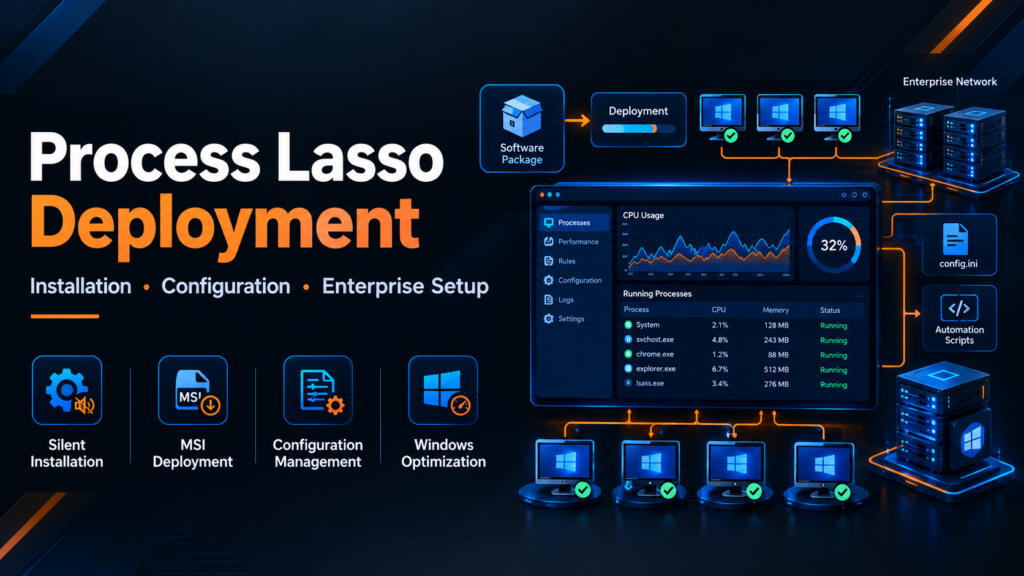
What Is Process Lasso Deployment?
Process Lasso deployment refers to the structured process of installing, initializing, and managing the software across target Windows environments. Proper deployment ensures that thread scheduling optimizations and CPU contention management policies apply consistently across all managed endpoints without requiring manual setup on individual machines.
Understanding the distinction between standard interactive installations and managed enterprise deployments is vital for systems administrators. While home users typically execute standard graphical installers, enterprise environments require silent deployment switches, MSI distribution packages, and automated configuration push-pull mechanisms to maintain policy compliance across hundreds of workstations.
Process Lasso Deployment Methods and Installation Approaches
Selecting the appropriate deployment method depends heavily on the scale of the target infrastructure and administrative access requirements. Single-computer installations suit individual home users and independent workstations, whereas multi-computer and enterprise rollouts demand automated tools and centralized policy enforcement.
Managed IT environments benefit from standardized deployment scripts that configure the background governor service (`processgovernor.exe`) and establish persistent configuration files (`prolasso.ini`) in designated system directories (`C:\ProgramData\ProcessLasso\config\`) during initial setup.
Single Computer Process Lasso Installation
Single computer installation involves downloading the official signed binary package and executing the interactive setup wizard. This approach allows individual users to review license terms, choose installation directories, and establish baseline preferences tailored to standalone gaming rigs or personal productivity desktops.
Installing Process Lasso on Multiple Computers
Deploying the software across multiple computers requires standardized installation procedures to maintain configuration consistency. Administrators often utilize scripted batch files or network shares to execute identical installation parameters across small office fleets, ensuring uniform performance tuning.
Process Lasso Deployment for Managed IT Environments
Managed IT environments require rigorous administrative control over software deployment. By utilizing centralized endpoint management tools, administrators can push installation packages silently, enforce standardized rule sets, and monitor service health without end-user intervention.
Process Lasso Auto Start and Startup Configuration
Ensuring that Process Lasso initiates automatically with the operating system is critical for maintaining continuous thread scheduling and CPU optimization. The software utilizes a dual-component startup architecture to separate user-facing metrics from core system governance.
How Process Lasso Starts Automatically With Windows
Automatic startup mechanisms hook into Windows login procedures and system startup sequences to ensure the optimization engine is active immediately upon boot. This continuous operation prevents unmanaged background tasks from degrading system responsiveness from the moment the desktop loads.
Process Lasso GUI Startup and Governor Startup
The user-mode graphical interface (`prolasso.exe`) launches upon user logon to display real-time telemetry and process graphs. Simultaneously, the core governor service (`processgovernor.exe`) runs independently as a system service, managing thread priorities and affinity rules even when no user interface window is open.
Process Lasso Core Engine Startup and Background Operation
The background engine operates continuously without requiring user interaction. By querying native Windows NT executive APIs, the core engine monitors process resource consumption and applies dynamic prioritization rules silently in the background.
Process Lasso Service Mode and Startup Settings
Operating in service mode allows Process Lasso to govern system resources with elevated privileges under the SYSTEM account. Administrators can configure startup parameters via the Service Control Manager or through advanced application preferences to ensure uninterrupted background protection.
| Feature / Dimension | Windows Task Manager | Process Lasso | Functional Benefit |
|---|---|---|---|
| Primary Role | Interactive system viewer | Automated background governor | Works silently without babysitting |
| Rule Persistence | None (resets upon restart) | Permanent across reboots | Saves all priority and affinity rules |
| Thread Governance | Manual priority changes only | Automated ProBalance algorithm | Prevents desktop lockups dynamically |
| CPU Core Management | Basic affinity masks | CPU Sets & hybrid core routing | Better stability on modern silicon |
| Power Management | None | Event-driven power plan switching | Engages high performance during games |
| System Overhead | Requires open GUI window | Headless service (< 15 MB RAM) | Uses virtually zero system resources |
Process Lasso Configuration Deployment and Management
Managing configuration deployment across multiple endpoints ensures that all managed systems adhere to organizational performance standards. Administrators can learn more about advanced settings management in the Process Lasso Configuration guide, including files, paths, and deployment options. Transferring settings efficiently eliminates the need to configure individual workstations manually.
Process Lasso Config Push Pull Explained
Configuration push and pull mechanisms describe the methods by which
administrators distribute updated prolasso.ini configuration files
to client machines. Pushing configurations involves broadcasting verified
parameter sets from a central server, while pulling involves client endpoints
periodically fetching updated rules from a shared repository.
Process Lasso Configuration Migration Between Computers
Migrating configurations from an old PC to a new workstation involves exporting active rule sets and placing them into the destination system’s configuration directory. This seamless migration preserves custom process rules, affinity masks, and power profile assignments.
Deploying Process Lasso Settings Across Multiple Systems
Large-scale settings deployment relies on standardized master configuration templates. Administrators distribute these validated files via Group Policy or deployment scripts to enforce uniform thread scheduling policies across networked workstations.
Centralized and Shared Process Lasso Configuration
Centralized configuration management allows IT teams to maintain strict control over performance policies in team environments. By utilizing shared network paths or management servers, administrators ensure that configuration drift is minimized across enterprise fleets.
Managing Configuration Distribution in Enterprise Environments
Handling configuration distribution in large enterprise environments requires robust version control and staged rollouts. Testing configuration updates on a pilot group of machines prevents unexpected application conflicts before broad deployment.
Process Lasso Enterprise Deployment
Enterprise deployment of Process Lasso extends optimization capabilities beyond individual workstations into business-critical servers, terminal services, and distributed multi-location networks. Enterprise setups demand high reliability, minimal administrative overhead, and strict adherence to security protocols. Organizations evaluating available capabilities can review the Process Lasso Free vs Pro comparison to understand edition differences.
Process Lasso Enterprise Setup for Organizations
Organizational setup focuses on standardizing software deployment and centralizing management. By integrating Process Lasso into standard enterprise imaging and provisioning workflows, IT departments ensure every deployed PC is pre-optimized for peak operational efficiency.
Process Lasso Business and Server Deployment
Business and server deployments require continuous background operation to support heavy workloads and multi-user access. Process Lasso runs reliably as a Windows service on dedicated servers, mitigating resource contention without interfering with critical background services.
Process Lasso Terminal Server Deployment
Terminal server environments host multiple concurrent user sessions sharing a single hardware pool. Deploying Process Lasso helps prevent single runaway processes from starving other user sessions of CPU resources, maintaining fair CPU allocation across all active logins.
Process Lasso Remote Desktop Services Deployment
Remote Desktop Services (RDS) deployments benefit from Process Lasso’s dynamic prioritization engine. By regulating resource-intensive background applications, the software ensures responsive virtual desktop performance for remote workers.
Process Lasso Distributed Network Deployment
Distributed network deployments involve managing endpoints across multiple branch offices or remote locations. Centralized management tools and scheduled configuration synchronization enable IT administrators to maintain consistent performance policies across geographically dispersed infrastructures.
Process Lasso Large-Scale Deployment for Administrators
Large-scale administrative deployments require automated monitoring and maintenance routines. Administrators leverage command-line management tools and centralized logging to oversee hundreds of endpoints efficiently.
| Deployment Environment | Primary Objective | Key Technical Benefit | Management Strategy |
|---|---|---|---|
| Corporate Workstations | Standardize endpoint performance | Uniform responsiveness | Group Policy & MSI push |
| Business Servers | Sustain heavy background loads | Prevent resource starvation | Dedicated service mode |
| Terminal Servers | Balance multi-session contention | Fair CPU allocation per user | Session-aware governance |
| Remote Desktops (RDS) | Ensure virtual desktop fluidity | Mitigate latency spikes | Centralized profile sync |
Process Lasso Deployment Best Practices
Adhering to established deployment best practices ensures long-term system stability and administrative efficiency. IT professionals should follow structured protocols for maintaining configuration consistency, rolling out software updates, and troubleshooting deployment anomalies.
Maintaining Consistent Process Lasso Configurations
Maintaining configuration consistency requires establishing a master template stored in version control. Regular backups of prolasso.ini prevent accidental configuration loss during routine maintenance cycles.
Managing Process Lasso Updates Across Systems
Managing software updates across enterprise environments involves staging rollouts through pilot test groups before executing broad network updates. This proactive approach ensures compatibility with custom applications and system drivers.
Troubleshooting Common Deployment Issues
Common deployment issues typically involve installer permission errors, background service initialization failures, or configuration syntax mismatches. Reviewing Windows event logs and Process Lasso diagnostic reports allows administrators to resolve these issues promptly.
Figure 2: Enterprise component architecture footprint across user-mode GUI,
background governor service, INI configuration files, and the Windows Service
Control Manager.
[Alt Text: Horizontal bar chart showing enterprise component architecture
resource weight index for prolasso.exe, processgovernor.exe, prolasso.ini, and
Service Control Manager.]
