
Process Lasso Configuration: Commands, Settings, Paths & Advanced Options
Process Lasso Configuration allows advanced administrators and power users to customize software behavior using command line arguments, configuration files, directory paths, and advanced options. Users looking for the complete resource hub can visit Process Lasso Download for guides covering installation, optimization, features, and troubleshooting. By managing settings outside the standard graphical user interface, operators can streamline multi-system deployments, enforce persistent thread scheduling rules, and maintain consistent optimization baselines across enterprise environments. This technical guide covers command-line switches, INI and JSON file structures, process matching rules, and system-wide global options designed for fine-tuning Windows NT CPU contention management.
What Is Process Lasso Configuration?
Process Lasso configuration encompasses the complete framework of settings, parameters, and deployment files that dictate how the software interacts with the Windows NT executive and underlying hardware threads. While everyday users rely on default interactive settings, advanced operators require deep configuration control to tailor application behavior, manage rules outside the graphical interface, and deploy standardized policies across multiple machines.
Understanding the distinction between normal user preferences and advanced configuration files is essential for maintaining predictable system performance. Standard preferences control visible UI metrics, while advanced configuration files dictate background governor service execution (processgovernor.exe), persistent rule enforcement, core affinity masks, and CPU Sets allocations.
The Windows Service Control Manager handles background service operations in Windows environments. Learn more from Windows service management documentation .
How to Configure Process Lasso Settings
Configuring Process Lasso can be achieved through multiple administrative avenues depending on operational requirements. Operators can utilize the interactive desktop graphical interface for real-time adjustments, issue command-line switches for quick execution, or edit persistent configuration files directly within the system directory structure. Users who prefer managing options visually can explore the Process Lasso Interface Guide for details about menus, graphs, and controls.
Configuration data is stored centrally to ensure that rules and preferences survive system reboots, service restarts, and user sign-outs. Knowing where these files reside and how they interact with the background governor service enables administrators to maintain strict version control and robust backup routines.
Understanding Process Lasso Configuration Files
Configuration files serve as the persistent backbone for Process Lasso rules,
governing everything from ProBalance aggression thresholds to custom process
priorities. These files include structured INI files and JSON configuration
payloads that define how the background service manages thread scheduling and
resource contention.
By storing parameters in plain-text and structured formats, the software allows
administrators to review, audit, and modify system behavior programmatically
without needing to interact with the graphical window during automated
deployments.
Managing Process Lasso Settings and Options
Modifying advanced options requires adherence to safe editing practices to prevent syntax corruption or unexpected governor behavior. Administrators should always create backups of existing configuration files before making manual modifications. Reviewing global preferences through the Options menu ensures that system-wide adjustments align with hardware capabilities and thermal design limits.
Process Lasso Command Line Configuration
Command-line support is a cornerstone of Process Lasso’s administrative flexibility, enabling automation, silent deployments, and rapid configuration adjustments. Administrators frequently leverage command-line operations to script repetitive tasks, integrate optimization rules into enterprise deployment pipelines, or execute remote commands across network fleets.
The command-line interface interacts directly with the background service via documented utility switches and executable parameters, providing instant control over active rules and governor states without requiring manual window navigation.
Available command-line arguments provide granular control over application behavior, allowing operators to launch utilities, apply configuration commands, and query background service status. Parameters control execution states, rule application timing, and diagnostic reporting, making them indispensable for headless server environments and scripted maintenance routines.
Executing commands via ProcessLasso.exe involves passing specific switches and launch parameters to modify startup behavior and runtime rules. Administrators can deploy batch scripts or PowerShell automation to apply standardized configurations across client machines seamlessly.
Common administrative operations include opening specific configuration profiles, adjusting global governance states on the fly, and troubleshooting unresponsive background services. These operations allow IT personnel to manage system resources efficiently during high-stress maintenance windows.
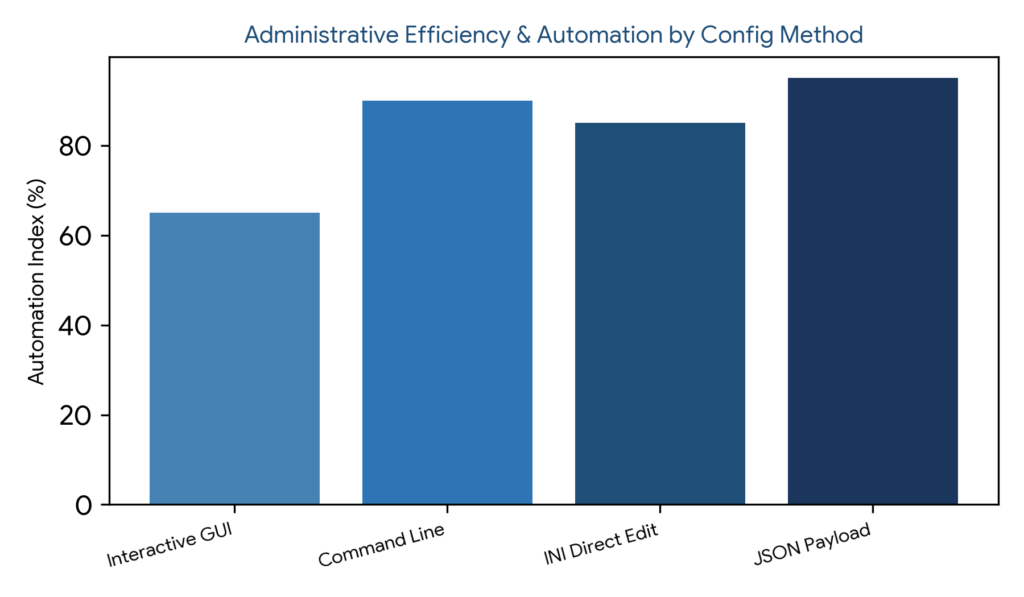
Figure 1: Administrative efficiency and automation capability comparison across interactive GUI, command-line arguments, INI direct edits, and JSON payloads.
Process Lasso INI Configuration
INI-based configuration provides a straightforward mechanism for storing application parameters in a human-readable structure. The INI file format organizes settings into distinct sections and key-value pairs, making manual inspection and minor edits highly accessible for systems administrators.
What Is the Process Lasso INI File?
Understanding prolasso.ini Configuration Settings
Editing and Managing Process Lasso INI Parameters
| Configuration Method | Primary Interface | Syntax & Structure | Automation Suitability |
|---|---|---|---|
| Interactive GUI | Desktop Window | Visual controls and dialogs | Low (requires manual clicks) |
| Command Line | Terminal / PowerShell | Executable switches & parameters | High (ideal for scripts) |
| INI Configuration | Plain Text Editor | Sections and key-value pairs | Moderate (batch file updates) |
| JSON Payload | Structured Schema | Objects, keys, and arrays | Very High (programmatic deployment) |
Table 1: Structured comparison of Process Lasso configuration methods across interfaces, syntax structures, and automation suitability.
Process Lasso JSON Configuration
JSON configuration support empowers administrators with structured data representation, facilitating easier programmatic management and complex rule serialization. JSON payloads allow robust schema validation and seamless integration with modern configuration management tools and deployment pipelines.
Process Lasso Process Matching Configuration
Accurate process matching is foundational to Process Lasso’s optimization engine, dictating how the background governor identifies target applications in memory. Precise matching ensures that CPU affinity rules, priority classes, and restriction policies apply exclusively intended executables without unintended collateral effects.
How Process Lasso Matches Processes
Process identification relies on analyzing executable image names, absolute file paths, and runtime attributes against configured rule tables. The background governor inspects process creation events reported by the Windows NT executive to evaluate matching criteria instantly upon application launch.
Process Name, Path, and Wildcard Matching
Administrators can employ exact name matching for specific binaries, absolute path matching to differentiate between identically named executables in separate directories, or wildcard patterns to govern entire software families. These flexible matching options accommodate diverse application architectures.
Advanced Process Matching With Regex and Rules
For complex enterprise environments, advanced process matching supports regular expression patterns and multi-condition rule sets. These advanced capabilities allow administrators to capture dynamically named worker processes or transient background executables effectively.
| Matching Type | Syntax Example | Scope of Application | Use Case |
|---|---|---|---|
| Exact Name | game.exe | Single executable filename | Targeting specific games or apps |
| Absolute Path | C:\App\worker.exe | Exact directory and filename | Isolating specific app instances |
| Wildcard | update_*.exe | Pattern-based file matching | Capturing version-varying updaters |
| Regex Rules | ^(render|encode).*\.exe | Pattern matching expressions | Advanced multi-process governance |
Table 2: Comprehensive breakdown of process matching techniques, syntax examples, scopes, and administrative use cases.
Process Lasso Configuration Paths
Knowing where configuration files, logs, and diagnostic data reside is critical for routine maintenance, troubleshooting, and backup operations. Process Lasso maintains structured directory paths within the host operating system to segregate user preferences from system-wide service data.
Finding Process Lasso Config File Locations
Default configuration files are stored securely within the designated system directory structure (C:\ProgramData\ProcessLasso\config\), ensuring that configuration data remains accessible to the background governor service running under the SYSTEM account while preventing unauthorized user tampering.
Process Lasso Log Paths and Data Locations
Execution logs, diagnostic reports, and performance history files are maintained in designated log directories to facilitate troubleshooting and system auditing. Administrators can inspect these log files to review governor actions, rule triggers, and error events.
Managing Custom Configuration Paths
Advanced deployments often utilize portable configurations or redirected directory paths to support mobile administrative toolkits or locked-down enterprise environments. Configuring custom paths ensures that Process Lasso initializes correctly from removable media or network shares.
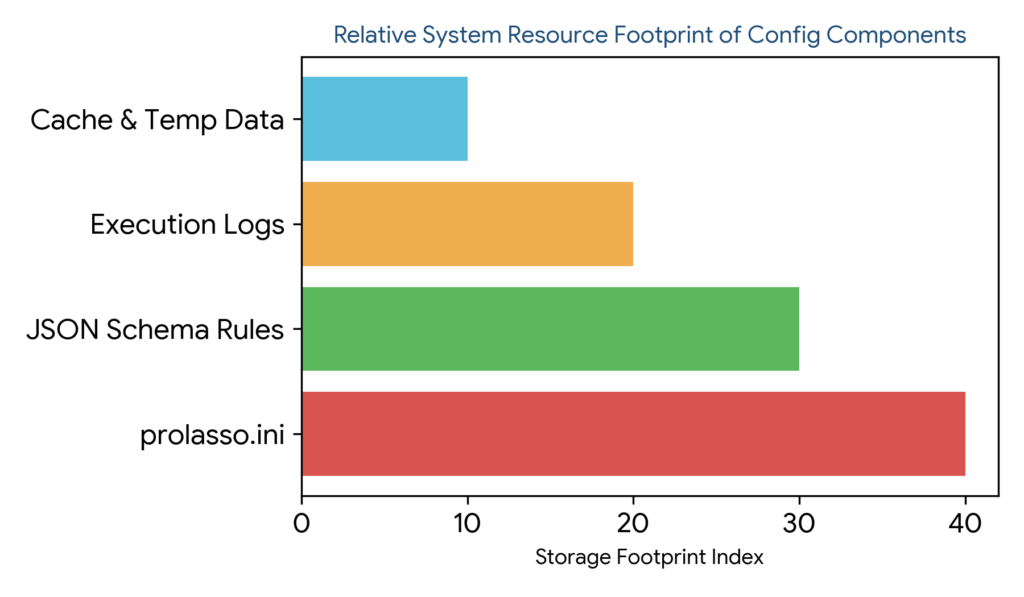
Figure 2: Relative storage complexity footprint across INI configurations, JSON schema rules, execution logs, and cache data.
Process Lasso Global Options and Advanced Settings
Global options govern the overarching behavior of Process Lasso across the entire operating system, influencing how the background service interacts with all active processes and threads. Configuring these settings correctly establishes a stable foundation for specialized application rules.
Understanding Process Lasso Global Settings
Global settings dictate system-wide preferences such as ProBalance activation thresholds, logging verbosity, update check intervals, and core governance behavior. These settings apply universally unless overridden by targeted process-specific rules.
Configuring Advanced Process Lasso Options
Advanced options empower power users to fine-tune thread scheduling weights, CPU core parking behavior, and executive API interactions. Accessing these settings requires administrative privileges and a thorough understanding of Windows NT threading mechanics.
Managing System-Wide Configuration Behavior
Maintaining consistent system-wide behavior involves establishing standardized global configurations that balance responsiveness with thermal efficiency. Administrators should test global modifications thoroughly before rolling them out across production fleets.
Process Lasso Configuration for Advanced Users
Advanced deployment scenarios require scalable configuration strategies that extend beyond single-machine tuning. For enterprise environments managing multiple systems, the Process Lasso deployment guide covers installation workflows and large-scale configuration practices.Power users and IT administrators often manage large fleets by deploying standardized configuration payloads across multiple systems simultaneously.
Deploying Process Lasso Configurations Across Systems
Configuration migration and automated deployment leverage scripted copying of validated INI and JSON files to target directory paths. This ensures uniform rule enforcement across enterprise workstations without manual intervention.
Using Portable and Remote Configurations
Portable setups encapsulate the application binary and configuration files within a self-contained directory structure, facilitating mobile administration. Remote configuration management allows administrators to push updates and monitor service health across networked endpoints.
Managing Large-Scale Process Lasso Settings
Handling large-scale rule sets requires disciplined configuration maintenance, regular backups, and version-controlled master templates. Establishing clear maintenance protocols prevents rule bloat and configuration drift across enterprise fleets.
Common Process Lasso Configuration Issues
Troubleshooting configuration anomalies requires a methodical approach to identifying syntax errors, file permission restrictions, and path mismatches. Resolving these issues quickly restores normal background governor operations.
Configuration Files Not Loading Correctly
When configuration files fail to load, operators should verify file permissions in the system configuration directory. The background service running under the SYSTEM account must retain read and write access to prolasso.ini and associated rule files.
Invalid INI or JSON Configuration Problems
Syntax errors, misplaced brackets, or invalid data types within INI or JSON files can cause parsing failures. Restoring a verified backup or resetting parameters to factory defaults resolves structural corruption quickly.
Restoring Default Process Lasso Settings
If persistent configuration corruption occurs, administrators can restore default settings by removing corrupted configuration files and restarting the background service, allowing Process Lasso to regenerate clean baseline parameters automatically.
