
Process Lasso Troubleshooting: Fix Common Issues, Errors & Performance Problems
Process Lasso troubleshooting encompasses diagnostic techniques and corrective procedures for resolving common issues, errors, and performance problems users encounter while operating the software. Whether addressing application launch failures, startup configuration hurdles, non-persisting settings, elevated background service utilization, or gaming stutter, systematic troubleshooting restores stable operation. By understanding the interaction between the user-mode interface and the background governor service (processgovernor.exe) running under the SYSTEM account via the Windows Service Control Manager, administrators can quickly isolate anomalies. This technical guide outlines step-by-step solutions, configuration checks, permission verifications, and advanced reset options across modern Windows environments.
Process Lasso Not Working: Common Causes and Fixes
When Process Lasso stops functioning correctly, the root cause typically stems from incorrect user permissions, background service interruptions, configuration file corruption, or conflicting security software. Diagnosing these failures requires examining service states and reviewing application logs stored within the installation directory.
An initial troubleshooting checklist involves restarting the application interface, rebooting the Windows operating system, checking for software updates, and verifying that administrative privileges are granted to background governor components.
Why Is Process Lasso Not Working?
Process failures frequently occur when essential background components fail to initialize or when security software inadvertently quarantines signed binaries. Confirming that processgovernor.exe is active in Task Manager helps isolate whether the issue affects the background engine or only the graphical interface.
processgovernor.exe is running in Task Manager and check whether antivirus or security software has blocked any Process Lasso components.
Process Lasso Stopped Working or Not Functioning
Situations where Process Lasso worked previously but suddenly stops often coincide with recent Windows updates, driver conflicts, or damaged preference files. Restoring normal function usually requires restarting the Windows Service Control Manager or executing a clean component reinitialization.
Process Lasso Not Responding or Freezing Issues
Application freezes in the graphical window typically result from high system telemetry loads or communication delays with the background service. Restarting the user-mode interface or inspecting diagnostic log files clears temporary interface stalls.
Process Lasso Won’t Open or Not Launching
Failing to launch altogether indicates missing executable files, severe permission restrictions, or startup blockages enforced by third-party antivirus suites. Verifying file integrity and reinstalling the software package resolves launch failures reliably.
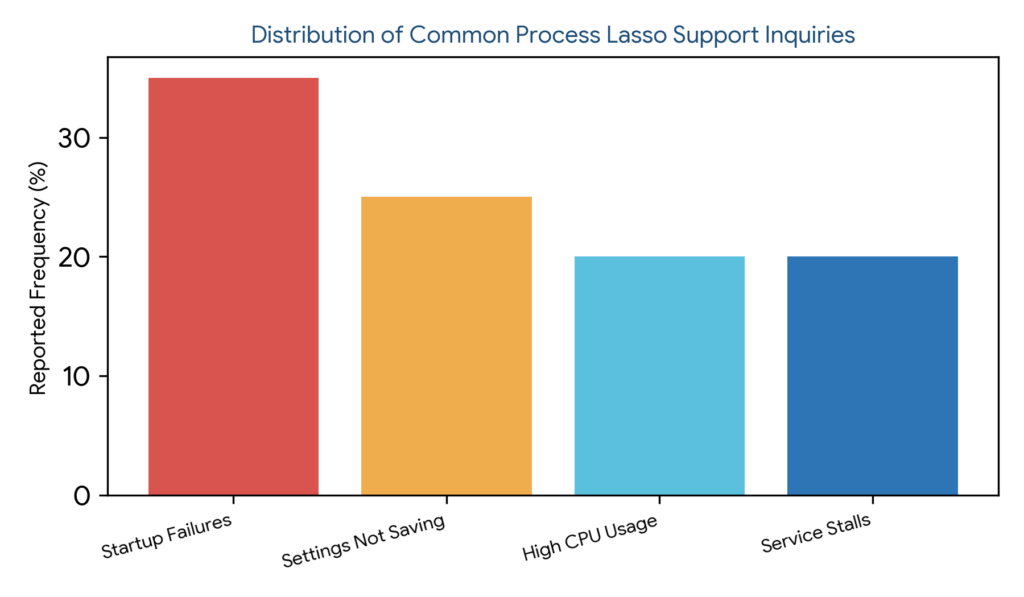
Figure 1: Distribution of common Process Lasso support inquiries highlighting startup failures, settings persistence errors, high CPU usage, and background service stalls.
How to Fix Process Lasso Startup Problems
Startup problems prevent Process Lasso from initiating automatically with Windows, leaving systems unoptimized upon boot. Resolving these issues involves checking Windows login startup entries, verifying service registration, and confirming account privileges.
Ensuring that both the graphical interface and the background governor service are properly configured for automatic startup maintains continuous optimization protection from the moment the desktop loads.
Process Lasso Not Starting With Windows
When Process Lasso fails to launch upon system boot, the automatic startup preference may be disabled within application settings or blocked by Windows startup security policies. Re-enabling the startup flag in application options corrects this behavior.
Process Lasso Startup Not Working
Investigating broken startup routines involves inspecting Windows Task Manager startup tab entries and confirming that the background governor service is set to automatic start within the Windows Services management console.
Process Lasso Does Not Launch Automatically
Startup delays or automatic launch failures frequently stem from user account control restrictions or slow service initialization during heavy boot sequences. Ensuring proper service dependencies resolves automatic launch hurdles.
How to Enable Process Lasso at Startup
Enabling startup behavior requires navigating to application preferences, selecting the option to launch with Windows, and verifying functionality by performing a complete system restart.
| Troubleshooting Category | Primary Symptom | Root Cause Analysis | Corrective Action |
|---|---|---|---|
| Startup Failures | Does not launch with Windows | Disabled entry or service stop | Re-enable startup flag & verify service |
| Settings Not Saving | Preferences revert after reboot | Read-only prolasso.ini file | Verify file write permissions |
| High CPU Usage | Governor service spikes CPU | Excessive logging or telemetry | Reduce logging verbosity & restart |
| Stuttering & Lag | Micro-stutters in games | Conflicting process rules | Review exclusions and test defaults |
Table 1: Structured troubleshooting checklist matrix outlining categories, primary symptoms, root causes, and corrective actions.
Process Lasso Settings and Rules Not Saving
Settings and rules failing to persist across reboots usually indicate file permission restrictions or corruption within the persistent configuration file (`prolasso.ini`) located in `C:\ProgramData\ProcessLasso\config\`. Ensuring the background service retains write access to this directory is vital.
When configuration files become write-protected or read-only due to security software interference, user adjustments revert automatically upon application restart.
prolasso.ini to ensure read-only status is cleared and verify that user accounts possess adequate administrative permissions.
For deeper information about files, paths, and advanced settings management, review the Process Lasso Configuration.
Process Lasso Service Problems and Background Issues
The background governor service (`processgovernor.exe`) represents the core engine responsible for executing optimization policies. Ensuring this service runs continuously without interruption is essential for maintaining system performance tuning.
Service stalls or crashes disable automated rule enforcement, leaving applications governed solely by default Windows NT scheduling policies.
For deeper diagnosis of Windows application and service errors, reviewing system event logs can help identify the root cause behind crashes, startup failures, and background service issues.
Windows Event Viewer troubleshooting guideProcess Lasso Service Not Running
When the background service stops running, administrators can restart it manually via the Windows Services management console or by executing service control commands in an elevated PowerShell terminal.
Checking Process Lasso Background Operation
Verifying background operation involves confirming active service status in Task Manager and reviewing diagnostic log files to ensure executive telemetry processing functions without error.
Restarting Process Lasso Services and Components
Safely restarting background components involves terminating active interface windows, restarting the governor service via service controls, and reopening the desktop interface to re-establish telemetry links.
Process Lasso High CPU Usage Issues
While Process Lasso is engineered for extreme efficiency, abnormal configurations or excessive logging verbosity can occasionally cause the background service to consume elevated CPU resources. Identifying the trigger helps restore minimal resource overhead.
Normal resource consumption should remain negligible; sudden spikes warrant immediate diagnostic review and configuration pruning.
Why Is Process Lasso Using Too Much CPU?
Excessive CPU utilization by the background service typically stems from aggressive logging settings, tracking an unmanageable number of active processes, or corrupted telemetry cache files.
Process Lasso CPU Usage Suddenly Increased
Sudden CPU spikes often correlate with newly introduced software conflicts or conflicting rule sets that trap the governor in continuous evaluation loops. Removing conflicting rules restores normal CPU levels.
Process Lasso Service Consuming High CPU Resources
When the governor service itself consumes high CPU resources, reducing diagnostic logging verbosity and restarting the background service immediately alleviates processor stress.
How to Reduce Process Lasso CPU Usage
Reducing CPU overhead involves reviewing active process rules, disabling unnecessary telemetry logging options, updating to the latest stable build, and restarting background components.
Fix Process Lasso Stuttering, Lag and Performance Issues
Gaming lag and micro-stutters occasionally occur when overly aggressive process rules or conflicting priority adjustments interfere with time-sensitive game engines. Troubleshooting performance complaints requires methodically testing system behavior against default settings.
Ensuring that protected game binaries are excluded from aggressive throttling rules eliminates stuttering anomalies during gameplay.
Process Lasso Causing Stuttering Problems
Stuttering problems usually trace back to conflicting affinity masks or forced priority overrides targeting sensitive gaming processes. Removing process-specific rules restores native engine timing.
Process Lasso FPS Stutter and Micro Stutter Issues
Investigating micro-stutter complaints involves temporarily pausing background optimization rules, checking anti-cheat compatibility boundaries, and verifying smooth frame pacing during test sessions.
For protected games and compatibility concerns, review the Process Lasso Anti-Cheat guide.
Process Lasso Causing Gaming Lag
Gaming lag linked to Process Lasso is almost always configuration-related rather than an inherent software flaw. Reviewing active rules and applying recommended gaming exclusions resolves lag issues effectively.
Fixing Process Lasso Performance Issues
Resolving general performance degradation involves resetting application configurations to factory defaults, updating the background governor engine, and re-establishing clean optimization rules.
How to Reset Process Lasso Setting
Advanced diagnosis methods for persistent anomalies involve auditing system permissions, verifying configuration file integrity, performing clean software reinstalls, and submitting diagnostic logs to technical support.
These rigorous steps resolve deep-seated system conflicts that resist basic troubleshooting efforts.
Reset Process Lasso Configuration
Resetting the configuration involves deleting or renaming prolasso.ini within the system configuration folder while the background service is stopped, allowing the application to generate a fresh default parameter set.
Restore Process Lasso Default Settings
Restoring original defaults via the application settings menu removes all custom modifications, returning ProBalance and governor preferences to their original recommended baselines.
Completely Reset Process Lasso Settings
A complete settings reset involves purging all saved configuration files and registry keys associated with the application, ensuring zero residual data remains from corrupted installations.
Process Lasso Factory Reset Options
Utilizing factory reset options is recommended when troubleshooting complex performance anomalies that resist standard configuration adjustments.
Process Lasso Update Problems and Installation Issues
Update failures and installation errors occasionally interrupt software maintenance routines due to network interruptions, file lock conflicts, or insufficient administrator privileges during setup execution.
Ensuring that background services are stopped prior to running updates prevents file lock errors and ensures successful version upgrades. Before updating, users can check the Process Lasso Changelog and Release Notes to review version changes and known improvements.
Process Lasso Update Failed
When automated updates fail, downloading the latest standalone installer directly from the official repository and running it with administrative privileges resolves installation obstacles.
Fixing Process Lasso Installation and Update Errors
Resolving stubborn installation errors requires performing a clean installation by completely uninstalling legacy components, purging old configuration directories, and deploying the latest verified build. For structured installation workflows and multi-system setups, consult the Process Lasso Deployment guide.
It provides guidance for organizing Process Lasso installations across multiple systems, helping maintain a consistent and structured deployment workflow.
Checking Process Lasso Version and Compatibility
Verifying software version numbers and operating system compatibility ensures that the installed build aligns with modern Windows NT requirements and security standards.
Process Lasso Performance Mode Not Working
Performance Mode failures typically occur when custom power plan GUIDs are missing, Windows power management APIs encounter permission blocks, or conflicting third-party power utilities override active profiles. Related power profile issues can also be diagnosed through the Process Lasso Power Management.
Checking Performance Settings and Power Profiles
Verifying that Bitsum Maximum Performance plans are registered correctly within Windows power options restores proper Performance Mode activation behavior.
Why Process Lasso Performance Mode Does Not Activate
Failure to activate Performance Mode usually points to missing power schemes or restricted user permissions preventing the background service from modifying active Windows power GUIDs.
Checking Process Lasso Performance Settings
Reviewing active performance settings and power profile associations ensures that application triggers correctly command the operating system to switch power states.
Fixing Process Lasso Optimization Features
Restoring full optimization feature functionality involves resetting power plan integrations, updating background services, and verifying clean rule execution.
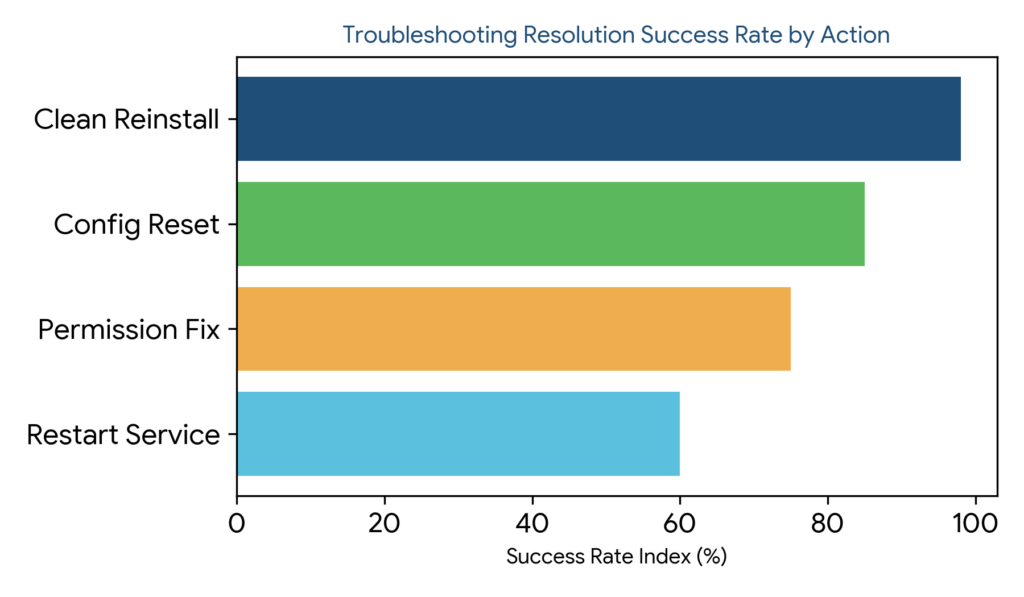
Figure 2: Troubleshooting resolution success rate comparison across restarting services, fixing permissions, resetting configurations, and clean reinstalls.
Advanced Process Lasso Troubleshooting Steps
Advanced diagnosis methods for persistent anomalies involve auditing system permissions, verifying configuration file integrity, performing clean software reinstalls, and submitting diagnostic logs to technical support.
These rigorous steps resolve deep-seated system conflicts that resist basic troubleshooting efforts.
Checking Process Lasso Permissions
Auditing file and service permissions ensures that the background governor service retains full read and write access to required system directories and registry hives under the SYSTEM account.
Verifying Process Lasso Configuration Files
Inspecting configuration files for syntax errors and structural integrity prevents parsing failures during background service startup and rule execution.
Reinstalling Process Lasso to Fix Persistent Issues
Executing a clean reinstallation wipes damaged binaries and corrupt configuration logs, establishing a pristine environment for the latest software build.
Contacting Support for Unresolved Process Lasso Problems
When technical problems defy local diagnosis, contacting official support with detailed logs, system specifications, and clear error descriptions ensures rapid resolution from developer engineering teams.
