
Process Lasso Registry Enforced Priorities: How It Works, Settings, and When to Use It
Registry Enforced Priorities is a Process Lasso feature that saves a process priority rule in the Windows registry instead of applying it only through Process Lasso’s running engine. It exists for one specific reason: some processes cannot be reached by normal priority rules — for example, games protected by anti-cheat systems. This option gives you a way to set a priority for those processes anyway.
This guide explains what Registry Enforced Priorities does, how it works, where to find the setting, when to use it, and what its limits are.
What Is Process Lasso Registry Enforced Priorities?
Registry Enforced Priorities is an alternate way of enforcing priority rules in Process Lasso. Instead of Process Lasso adjusting a process’s priority while the program runs, the priority is recorded in the Windows registry as a permanent (“sticky”) rule for that process. The rule then applies to every new instance of the process.
This is different from changing a priority once in Task Manager. A manual change lasts only until that process ends. A registry-enforced rule stays in place and applies automatically each time the process starts.
What Is Process Lasso Registry Enforced Priorities?
Registry Enforced Priorities is an alternate way of enforcing priority rules in Process Lasso. Instead of Process Lasso adjusting a process’s priority while the program runs, the priority is recorded in the Windows registry as a permanent (“sticky”) rule for that process. The rule then applies to every new instance of the process.
This is different from changing a priority once in Task Manager. A manual change lasts only until that process ends. A registry-enforced rule stays in place and applies automatically each time the process starts.
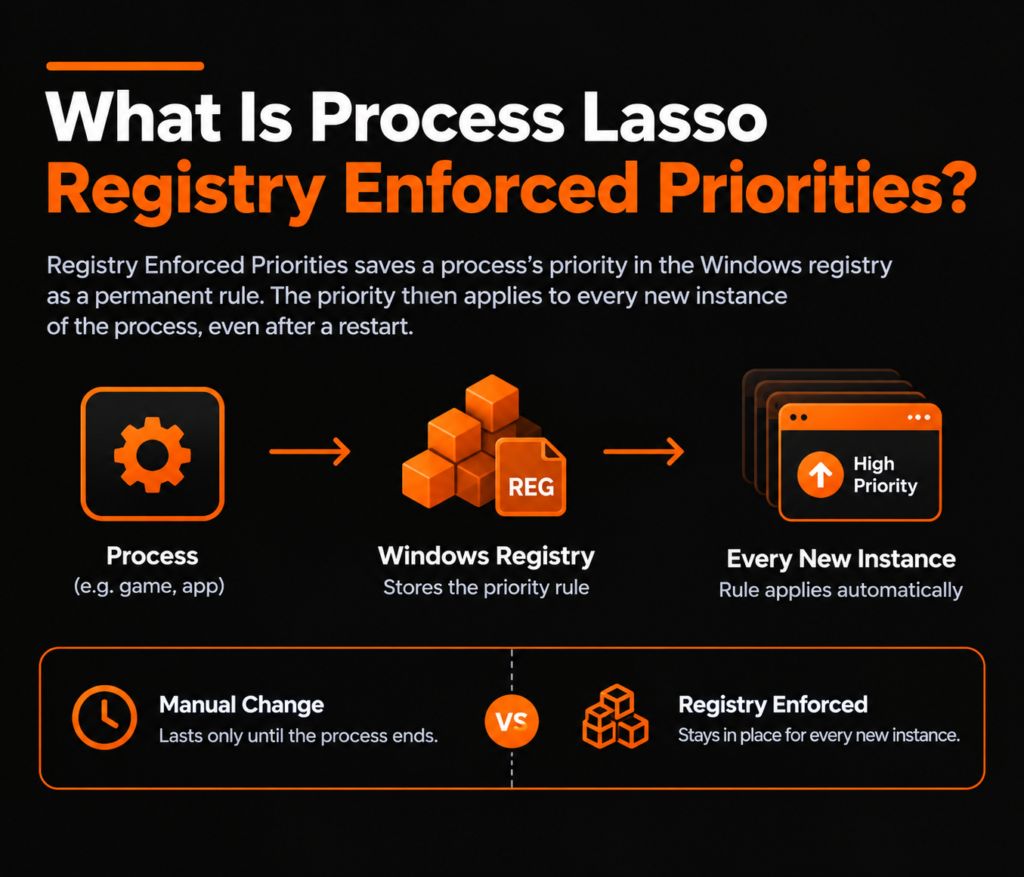
Registry Enforced Priorities stores process priority rules in the Windows registry so they apply automatically to new process instances.
How Registry Enforced Priorities Works in Process Lasso
The feature is built into Process Lasso’s existing priority rules. When you create a CPU priority class rule — or set a sticky priority from the process context menu — you check the option “Enforce by Windows Registry.” That stores the priority in the registry, so Windows itself carries it out for every new instance of that process, even ones Process Lasso cannot adjust directly.
Because the setting lives in the registry, it is not tied to Process Lasso’s current session. To keep things manageable, Process Lasso provides a dedicated dialog at Options / General / View Priorities Saved to Registry, which lists every priority stored this way. When you reset your configuration or uninstall, you are offered a proper cleanup of these entries.
For a deeper understanding of how Windows handles process priority classes and thread scheduling, see the Microsoft Learn: Scheduling Priorities ↗.
One technical restriction: process matches must be exact. Wildcards, full paths, and regular expressions cannot be used with registry-enforced priorities.
Why Does Process Lasso Use Registry Enforced Priorities?
Normal priority rules need Process Lasso to reach the target process. Some processes block that — most commonly games with anti-cheat protection. Without this feature, users had to re-apply priorities by hand, or could not set them at all for those processes.
Registry enforcement solves that narrow problem. Once set, the priority applies on its own, every time the process launches, with no repeated manual changes. It keeps application behavior consistent where normal rules fall short. If you’re configuring Process Lasso for a protected game, read our guide to Process Lasso and anti-cheat compatibility for more context on potential compatibility issues.
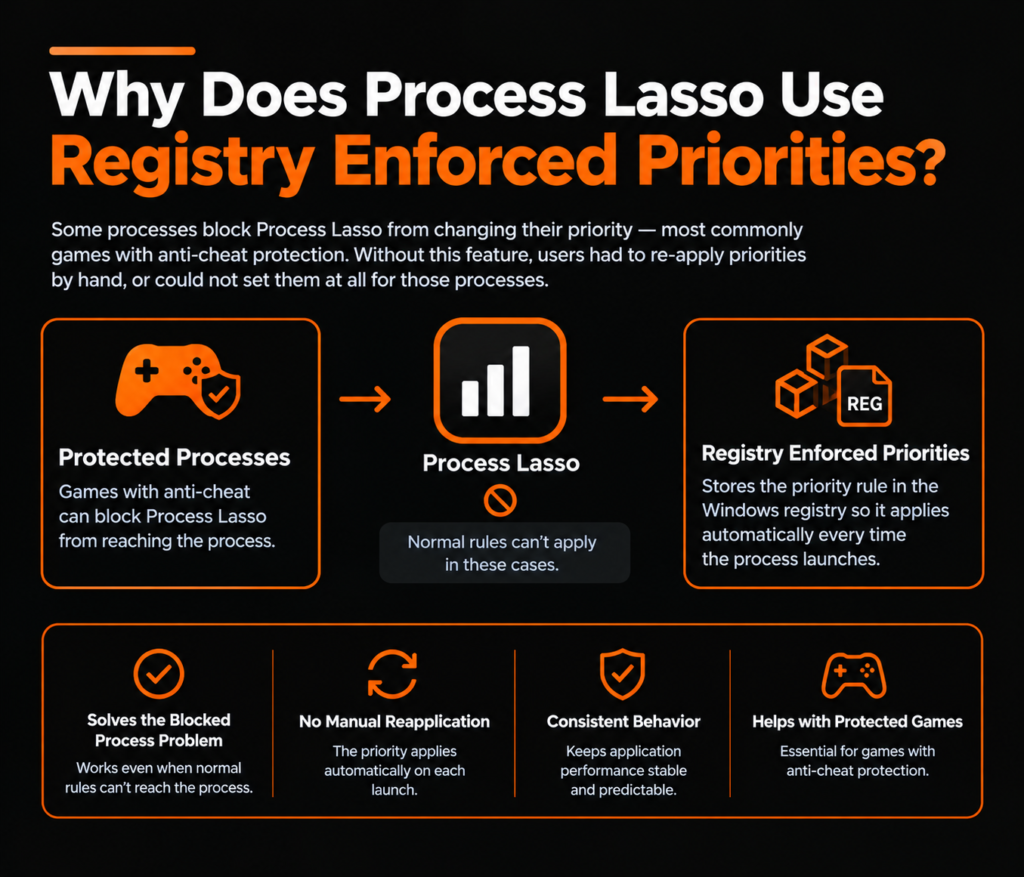
Process Lasso Registry Enforced Priorities Settings
Where to Find Registry Enforced Priorities Option
The option appears in two places:
In the CPU priority class rules dialog, as the “Enforce by Windows Registry” checkbox.
In the process context menu — including the multi-select menu — when you set a sticky priority for one or more processes.
How to Enable Registry Enforced Priorities
If you’re new to the software, our Process Lasso setup guide covers the initial configuration and explains how to start managing application behavior.
To enable it:
Open the CPU priority class rules dialog, or right-click a process and choose to set a sticky priority.
Check “Enforce by Windows Registry.”
Save the rule. The priority will now apply to every new instance of that process.
Enabling makes sense when a process ignores or resets normal priority rules — typically anti-cheat-protected games.
How to Disable Registry Enforced Priorities
To go back to normal behavior, uncheck the option on the rule — or open Options / General / View Priorities Saved to Registry and remove the entry from the list. Disable it when you no longer need the enforcement, or when a normal rule handles the process fine on its own.
When Should You Use Registry Enforced Priorities in Process Lasso?
This is a targeted tool, not something most users need. Consider it when:
A game or application is shielded (for example, by anti-cheat) and normal priority rules have no effect on it.
An application needs the same priority every time it launches, and you are tired of setting it manually.
Priority settings keep getting lost or overridden, and you want them to stick.
If normal Process Lasso rules already work for the process, there is no reason to switch to registry enforcement.
Registry Enforced Priorities vs Normal Process Lasso Priority Settings
Priority rules are different from automatic CPU-load management; learn how Process Lasso ProBalance adjusts process priorities to help maintain system responsiveness under heavy workloads.
The two methods differ only in how the priority is enforced:
| Method | Behavior |
|---|---|
| Normal priority rule | Applied by Process Lasso while it runs; needs direct access to the process. |
| Registry Enforced Priorities | Stored in the Windows registry; applies to every new instance automatically, including processes normal rules cannot reach. |
Note the scope: this method supports priorities only. CPU affinities and other rule types cannot be enforced through the registry.
Process Lasso Registry Enforced Priorities After Restart
Registry entries survive reboots by nature, so a registry-enforced priority is still in place after you restart — you do not need to set it again. If the behavior seems different after a restart, check that the entry is still listed under Options / General / View Priorities Saved to Registry, and confirm the process name match is exact.
Process Lasso Registry Enforced Priorities Not Working
Priority Changes Are Not Being Applied
First, confirm the “Enforce by Windows Registry” checkbox is actually set on the rule. Then confirm the match is exact — the process name must match precisely, with no wildcards, paths, or regular expressions. If both are correct, restart Process Lasso and check again.
Priority Settings Reset After Restart
Open Options / General / View Priorities Saved to Registry and verify the entry is still there. Entries can be removed during a configuration reset or uninstall, so if one is missing, simply re-add the rule.
Registry Enforced Priorities Option Is Not Available
This feature was introduced in Process Lasso 15.0. If you do not see the option, you are running an older version — update Process Lasso and the checkbox will appear in the priority rule dialogs.
Process Lasso Registry Enforced Priorities Benefits and Limitations
Benefits of Registry Enforced Priorities
Persistent priority behavior for processes that normal rules cannot reach.
No repeated manual adjustments — the rule applies to every new instance automatically.
Full visibility and control: every registry-stored priority is listed in one dialog, with cleanup on config reset or uninstall.
Limitations of Registry Enforced Priorities
Priorities only — CPU affinities and other rule types are not supported.
Exact process matches only — no wildcards, paths, or regular expressions.
Not needed for most users; normal priority rules are simpler where they work.
Understand what the setting does before enabling it, since it writes to the Windows registry.
Frequently Asked Questions About Process Lasso Registry Enforced Priorities
Final Thoughts on Process Lasso Registry Enforced Priorities
Registry Enforced Priorities is an advanced Process Lasso feature built for one job: keeping priority behavior consistent for processes that normal rules cannot touch. It is not something every user needs, and it carries real restrictions — priorities only, exact matches only. But when you do need it, it removes the chore of re-applying priorities by hand and keeps the rule in place across restarts. Enable it for the specific processes that need it, review the stored entries in the registry priorities dialog now and then, and remove anything you no longer use.
Disclosure: This is an independent guide and is not affiliated with or endorsed by Bitsum LLC, the maker of Process Lasso.
