
Why Use Process Lasso for Streaming?
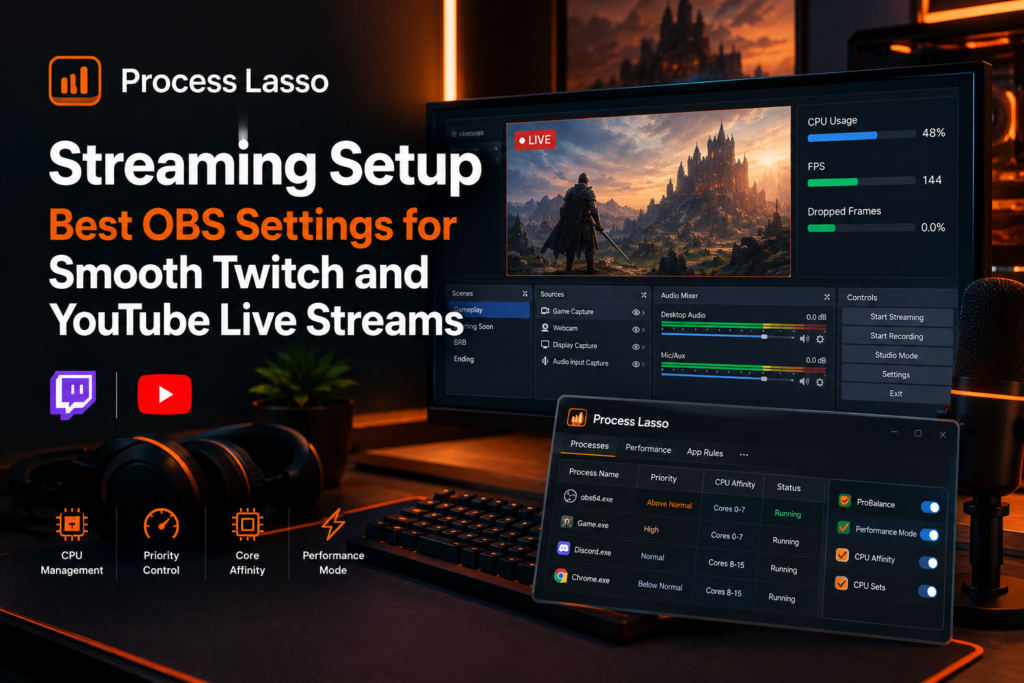
A stream is several demanding applications running simultaneously. OBS encodes video in real time, the game renders frames, and a half-dozen support apps chatter in the background. Windows treats them all as equals by default, so a background updater spike can steal CPU time from your encoder at the worst moment.
Process Lasso’s role is workload management: ProBalance automatically restrains background CPU hogs, priority and CPU affinity rules protect OBS and your game, and Performance Mode engages while you stream. It does not replace a capable CPU or a sane encoder setup it keeps the applications you already have from tripping over each other. To understand how this automatic balancing works, read our guide to Process Lasso ProBalance, which explains how background CPU contention is detected and managed without unnecessarily stopping other applications.
Windows manages CPU time according to process and thread priorities, which influence how readily applications receive processor resources; Microsoft explains this behavior in its official guide to Windows Scheduling Priorities .
Process Lasso Streaming Setup Before You Start
Single PC Streaming Setup
Gaming and streaming on one computer is the hardest case: the game and the encoder share everything. This is where Process Lasso earns its keep — separating the game’s CPU time from OBS’s and keeping background apps out of both.Dual PC Streaming Setup
With a dedicated streaming PC, the gaming PC just plays and the streaming PC just encodes. Process Lasso still helps on the streaming machine, where OBS, browser sources, chat tools, and alerts share the CPU — the same rules apply, with less contention to manage.Process Lasso OBS Studio Setup
Start by finding OBS Studio (obs64.exe) in the Process Lasso process list. Treat OBS as the application to protect: its encoding threads need consistent CPU time, so the goal of every rule below is to keep OBS fed while everything else waits its turn.Best Process Lasso Settings for OBS Streaming
Process Lasso Settings for OBS Studio
Executing the process lasso installation guide and following proper process lasso installation steps ensures a clean setup for your PC.
Keep ProBalance Enabled
Keep ProBalance enabled so background CPU spikes are restrained automatically, helping maintain responsiveness while OBS is streaming.
Set OBS to Above-Normal Priority
Create an above-normal priority rule for OBS so its encoding threads receive preferential CPU scheduling when competing with other processes.
Configure CPU Affinity or CPU Sets
On high-core-count CPUs, consider assigning OBS to selected cores or using CPU Sets to manage where it runs. Test any separation from the game carefully to avoid limiting OBS’s access to the resources it needs.
Enable Performance Mode for OBS
Configure Performance Mode to activate when OBS launches, where appropriate, to help prevent power-saving settings from reducing performance during streaming.
Apply one change at a time and test with a short recording before going live.
Process Lasso Settings for Streaming Applications
Do the same triage for support apps: Discord, browser sources, alert widgets, and chat bots do not need high priority — normal or below-normal keeps them responsive without letting them interrupt encoding. If a specific tool misbehaves, a targeted rule beats changing global settings.
Process Lasso Settings for Twitch and YouTube Live Streaming
Configure Process Lasso around your streaming platform and session requirements. Twitch gaming streams often prioritize responsive gameplay, while longer YouTube Live sessions benefit from consistent performance and reliable background process management.
Process Lasso Twitch Streaming Setup
Twitch streaming is typically fast-paced gaming with OBS encoding in real time. The priority order is: game first, OBS second, everything else after. Set your rules to reflect that and leave them alone mid-stream.
For a deeper understanding of how Windows handles process priority classes, read our Registry Enforced Priorities guide, which explains how Windows priority settings influence the scheduling order of competing applications.
Process Lasso YouTube Live Streaming Setup
YouTube Live often means longer sessions, where stability matters more than peak responsiveness. The same rules apply, with extra attention to background apps that wake up over time — updaters and sync tools are the usual culprits in hour three. ProBalance plus a Performance Mode rule covers most of it.
How Process Lasso Helps Fix Stream Lag and Stuttering
Most stream stutter traced to the CPU comes from contention: something else using the cores OBS or the game needs, at the moment they need them. ProBalance addresses the sudden spikes; priority rules address the pecking order; affinity rules address the physical separation.
Be honest about the limits: if the CPU is simply too weak for the game plus x264 encoding at your settings, no process manager fixes that — the answer is NVENC/AMF hardware encoding or lighter encoder settings, not more rules.
Process Lasso OBS CPU Usage Issues
OBS CPU usage climbs with resolution, frame rate, and software encoding. Before adding rules, check what is actually consuming CPU in Process Lasso’s process list — sometimes the hog is not OBS but a browser source or an antivirus scan. Fix the real offender: restrain or deprioritize it rather than piling rules on OBS.
Process Lasso Encoder Settings for Streaming
Process Lasso With NVENC Streaming
NVENC (and AMD’s AMF) encode on the GPU, leaving the CPU mostly free. Process Lasso’s job here is light: keep background apps off the game’s cores and let the GPU handle encoding. This is the recommended path for single-PC streaming on NVIDIA/AMD hardware.
Process Lasso With x264 Streaming
x264 encodes on the CPU and competes directly with the game — this is where Process Lasso matters most. Reserve cores for OBS via CPU Sets or affinity, keep the game’s threads on their own cores, and restrain everything else. Even then, x264 on a single PC while gaming is demanding; test thoroughly.
On supported systems, you can also explore disabling SMT with Process Lasso for selected workloads, but benchmark this separately because changing logical processor availability may reduce performance in some games and encoders.
Process Lasso Streaming Workflow for Content Creators
A typical managed workflow looks like this:
Game: high priority, dedicated cores via CPU affinity or CPU Sets.
OBS Studio: above-normal priority, protected cores, Performance Mode induced.
Discord, browser sources, alerts, chat tools: normal priority, allowed to use remaining cores.
Updaters, sync tools, background services: ProBalance handles spikes; manual low-priority rules for known offenders.
Common Process Lasso Streaming Problems
Process Lasso Not Improving Stream Performance
Check that your rules are actually applied while streaming — open Process Lasso mid-stream and verify priorities and affinities on OBS and the game. If the bottleneck is the GPU or the encoder settings, process rules cannot help.
OBS Still Dropping Frames After Setup
Distinguish encoding lag (CPU/GPU overloaded) from network drops (connection issue) in OBS’s stats. Process Lasso only addresses the first, and only the contention part of it — an overloaded encoder needs lighter settings or hardware encoding.
Process Lasso Settings Not Working for Streaming
Rules match processes by name; if OBS or the game updated and the executable name or path changed, recreate the rule. Also confirm Process Lasso’s core engine is running — rules do nothing if only the GUI is open without the governor.
Frequently Asked Questions About Process Lasso Streaming Setup
Final Thoughts: Is Process Lasso Worth Using for Streaming?
For single-PC streamers and anyone running a busy streaming workflow, yes: it is a practical way to keep the game, OBS, and background apps from fighting over the CPU. Treat it as a workflow management tool, not a magic performance switch — set the rules, test with a recording, and adjust based on what your system actually does. The streamers who benefit most are the ones who measure before and after rather than assuming.
Disclosure
This is an independent guide and is not affiliated with or endorsed by Bitsum LLC, the maker of Process Lasso.