
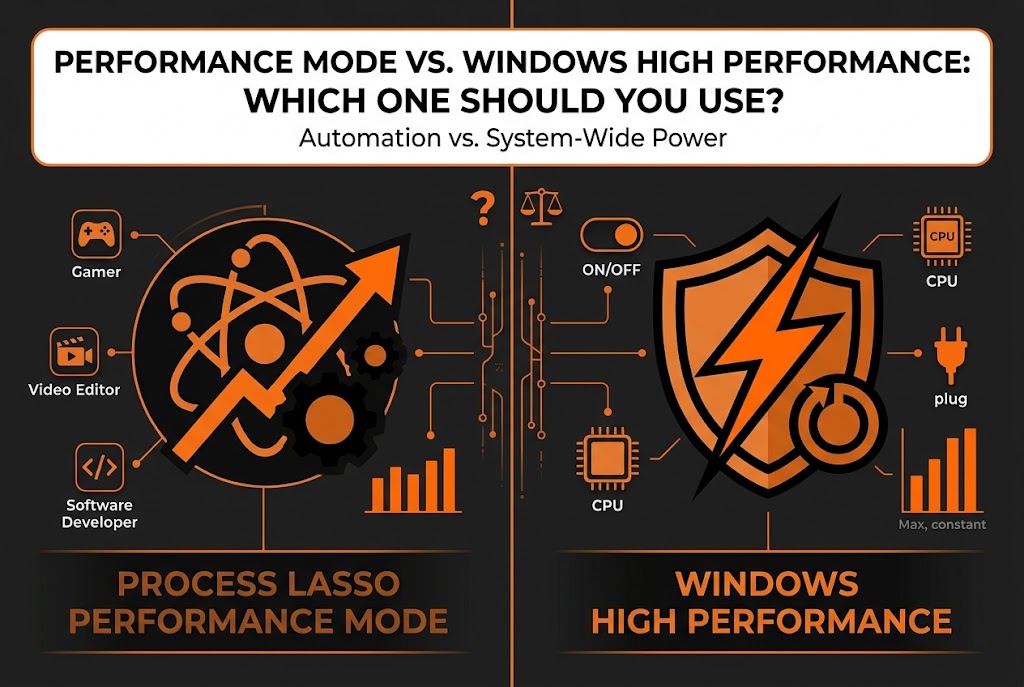
What Is Process Lasso Performance Mode?
Performance Mode is a Process Lasso feature for users who want the application to take charge of performance behavior. Instead of you manually switching settings when a demanding task starts, Performance Mode lets Process Lasso manage the performance-related behavior automatically — engaging when your workload needs it and stepping back when it does not. For a closer look at how Process Lasso Performance Mode vs Windows High Performance differs in everyday use, see our guide to Process Lasso Performance Mode and its application-specific power-profile controls.
Who it is for
People usually enable it for the same reason they open Process Lasso at all: they want application-focused control without babysitting settings. It is aimed at gamers, creators, and anyone running heavy workloads who would rather define the desired behavior once than toggle things by hand every session.
What Is Windows High Performance Power Plan?
Windows ships with several power plans, and High Performance is the most aggressive of the built-ins. A power plan is simply a collection of system settings — how quickly the CPU ramps up, when disks spin down, how the system sleeps — and the High Performance plan biases all of them toward readiness: the processor stays clocked higher, power-saving delays shrink, and the system spends less time waking itself up. When comparing Process Lasso Performance Mode vs Windows High Performance, understanding Process Lasso power management helps clarify how automatic power-profile switching differs from leaving one Windows plan enabled.
Microsoft explains how these settings work in its documentation on Windows Power Policy Settings , including the differences between power plans and their performance and energy-saving goals.
Why users pick it
Users select it for a straightforward reason: it is there, it is one click in the Settings or Control Panel, and it removes the power-saving hesitations that can make a system feel sluggish. It applies system-wide, to everything running, with no per-application intelligence.
Process Lasso Performance Mode vs Windows High Performance: Key Differences
|
Aspect |
Process Lasso Performance Mode |
Windows High Performance |
|---|---|---|
|
What it is |
A feature inside Process Lasso |
A built-in Windows power plan |
|
Approach |
Manages performance behavior through the application |
Changes system-wide power profile behavior |
|
Control level |
Application-focused — tied to what you run |
System-wide — applies to everything equally |
|
Automation |
Engages based on Process Lasso behavior/rules |
Static until you manually switch plans |
|
Extra software |
Requires Process Lasso |
None — built into Windows |
|
Best for |
Users already managing performance via Process Lasso |
Users wanting the simplest built-in option |
The short version
Windows High Performance is a blunt, always-on posture for the whole system. Process Lasso Performance Mode is a managed behavior that acts through the application’s own logic.
How Process Lasso Performance Mode Works Compared to Windows High Performance
The difference is in where the decision lives.
Windows High Performance
With Windows High Performance, you flip a system-wide switch and Windows holds that posture until you flip it back — it does not know or care whether you are gaming, rendering, or reading email. Every process gets the same treatment.
Process Lasso Performance Mode
Process Lasso Performance Mode works through the application’s management features instead: it engages based on Process Lasso’s behavior — what is running and what you have configured — rather than holding one static system posture. That makes it more selective by nature: performance management follows the workload instead of blanketing the system.
Does Process Lasso Replace Windows High Performance Power Plan?
Short answer: No
They are not direct replacements for each other, because they operate at different layers. Windows High Performance is a power profile; Process Lasso Performance Mode is application-level performance management. You can use either one, compare both, or in many cases run them together. The better choice depends entirely on your goal: hands-off simplicity favors the Windows plan, while managed, application-aware behavior favors Process Lasso.
Process Lasso Performance Mode and Windows High Performance Together
Can You Use Process Lasso With High Performance Mode?
Yes. Nothing stops you from setting Windows to High Performance and running Process Lasso with Performance Mode on top of it. They do not conflict — one sets the system’s power posture, the other manages application behavior within it. Many users test exactly this combination to see whether the pairing feels any different from either option alone.
Which Power Mode Should You Choose?
Think in terms of approach rather than brand.
Balanced approach
Leave Windows on Balanced and let Process Lasso manage performance behavior when demanding apps run — you keep power savings during idle time and get responsiveness when it counts. When comparing Process Lasso Performance Mode vs Windows High Performance, application-specific Process Lasso rules can provide another way to configure behavior for individual workloads.
Performance-focused approach
Set Windows to High Performance for a constantly ready system, with or without Process Lasso managing on top.
Match the approach to your priorities: battery life and quiet operation lean toward the first, maximum readiness leans toward the second.
Process Lasso Performance Mode vs High Performance: Performance Comparison
Gaming Workloads
For gaming, what matters most is responsiveness and consistency — stable frame delivery rather than peak numbers. Either option can help a system feel snappier by reducing power-saving hesitation, but results vary enormously by system: CPU, GPU, drivers, and the game itself all matter more than which performance toggle you chose. Do not expect FPS miracles from either; judge by whether the game feels consistently responsive.
Heavy Applications
Rendering, compiling, video encoding, and other long, heavy workloads benefit from a system that does not throttle itself mid-task. Windows High Performance guarantees the system stays ready throughout. Process Lasso Performance Mode offers the managed alternative — performance behavior that follows the workload. For scheduled or recurring heavy work, the managed approach saves you from remembering to switch plans back afterwards. While Process Lasso Performance Mode vs Windows High Performance focuses on performance behavior, the Process Lasso CPU Limiter provides a separate way to manage excessive CPU usage when a workload needs limits.Beyond the Process Lasso Performance Mode vs Windows High Performance comparison, learn about CPU Sets vs CPU Affinity if you need to understand how Windows and Process Lasso control which processors an application can use.
Everyday Computer Usage
For browsing, office work, and general use, neither option transforms the experience — these workloads rarely push the system hard enough for power posture to matter. If anything, the always-on nature of High Performance is wasted here, making the selective approach the more sensible default for everyday machines.
Process Lasso Performance Mode vs Windows High Performance: Power Consumption Differences
The trade-off is real: performance-focused modes consume more power because the system spends less time in low-power states. On a desktop plugged into the wall, most users never notice. On a laptop, it shows up as shorter battery life and more fan noise — which is why laptop users often have different priorities than desktop users.
⚡ Laptop users
If you are on battery, think twice about any always-on performance posture; selective management that engages only under load is the kinder option for battery life.
Which One Should You Use: Process Lasso Performance Mode or Windows High Performance?
Choose Process Lasso Performance Mode If:
Choose Windows High Performance If:
Common Questions About Process Lasso Performance Mode and Windows High Performance
Final Verdict: Process Lasso Performance Mode vs Windows High Performance
They solve similar goals using different approaches. Windows High Performance is the simple built-in option: one click, system-wide, always on. Process Lasso Performance Mode is the managed option: application-focused behavior for users already handling performance through Process Lasso. If you want simplicity, take the Windows plan. If you want control that follows your workload, take Performance Mode. And if you want both, they run together just fine.
Disclosure
This is an independent guide and is not affiliated with or endorsed by Bitsum LLC, the developer of Process Lasso. Process Lasso is a trademark of Bitsum LLC. Windows is a trademark of Microsoft Corporation.